I always wondered, what would k9s for Kafka look like? So I built it!
Before joining Factor House I headed up the Kafka teams at Block, and I spent a lot of time in the terminal, and specifically, K9s. K9s was great; find the resource, inspect it, act if you need to and move on, all from the keyboard. The first version of the Kpow terminal UI took shape on a train in Finland, with a plate of meatballs, a refreshing beverage, and some incredible scenery.
Now, Kpow includes a terminal UI for Apache Kafka. It ships in the new Factor House CLI, fh, and you launch it with fh tui. It gives you a full-screen, keyboard-driven view of your Kafka deployment: cluster health, Signals, topics, consumer groups, Data Inspect, topic lineage, Kafka Streams, schema registries, brokers, Kafka Connect and Flink (with Flex or Factor Platform). It is available to every Kpow user today, from Kpow 96.5 onwards.
Why we built a terminal UI for Kpow
Engineers working with Kafka spend a lot of time moving between related questions. A consumer is falling behind or didn’t get data, so you check its assignments. You look at the topic it consumes. You inspect a few messages, then check the connector producing them. The information is related, and the tooling should make it easy to follow that relationship without leaving the terminal you are already investigating in.
There are three practical benefits to this approach:
- A shorter learning curve. If you already use k9s or similar terminal tools, the navigation model is familiar, and the views mirror the Kpow web UI, so there is very little new to learn.
- Faster incident response. You can check cluster health, find a lagging consumer group, inspect the records on a topic and reset offsets from the same terminal session you are already using to investigate.
- Kpow’s governance under the hood. The terminal UI connects to the Kpow API rather than to your brokers directly, so every action is subject to the same authentication, role-based access control, tenancy and approval rules as the web UI.
Product demo · 16 min
A terminal UI for Apache Kafka: Kpow TUI demo
Chad Harris walks through the Kpow terminal UI: cluster overview, Signals, Data Inspect with kJQ, topic lineage, offset resets, Kafka Connect and Flink, all from the keyboard under Kpow RBAC.
What you can do in the terminal UI
The terminal UI reads from the same Kpow API as the web UI, so the data you see is the same live data. Each area of Kpow has its own view, and you move between them with the keyboard.
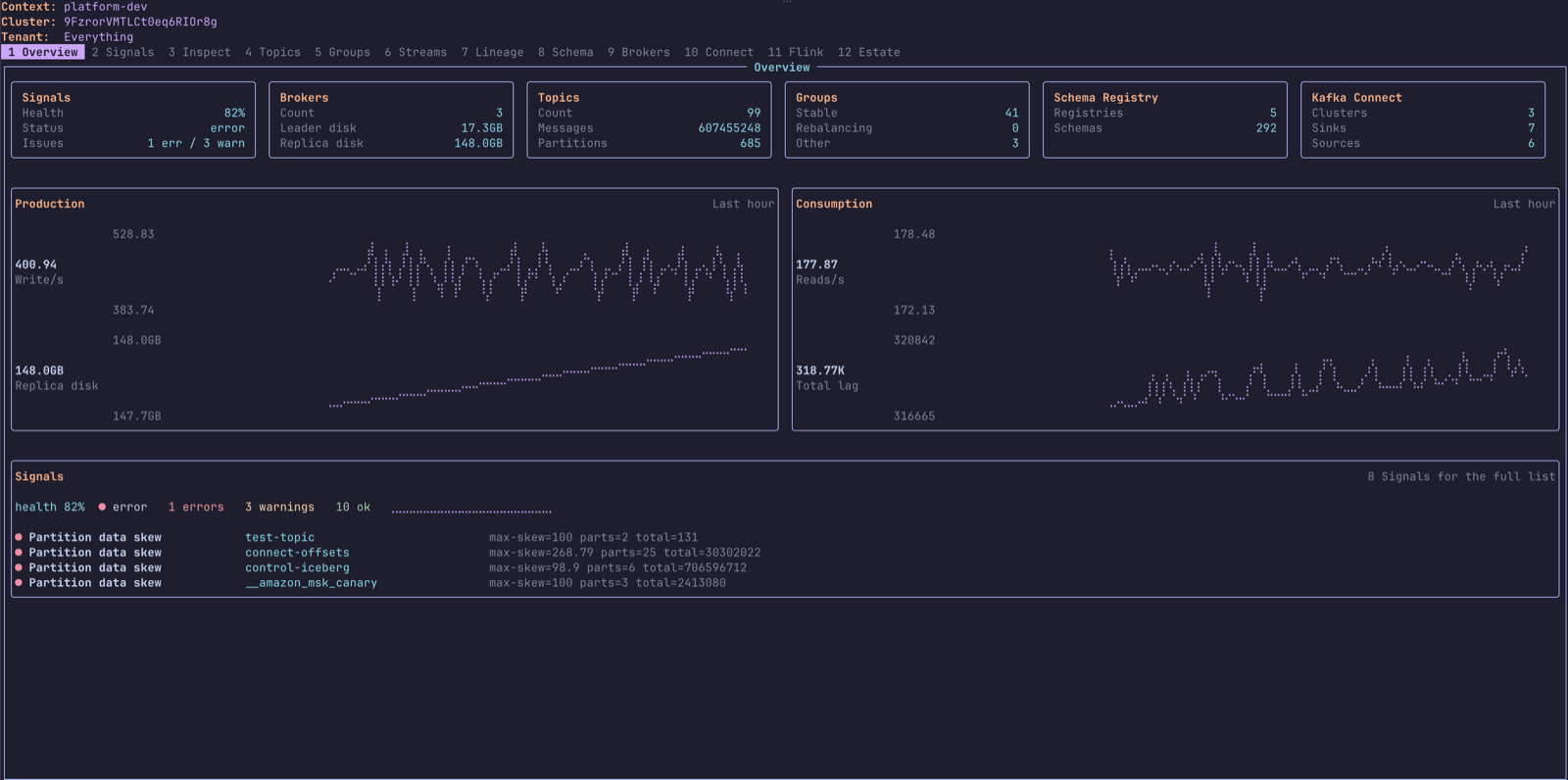
Number keys jump to the first nine views, and : opens a Vim-style command line where you can open any view by name (for example :flink) or switch context, tenant, theme or cluster. Within a view, [ and ] move between tabs, enter opens the selected row, esc goes back and / filters any table. Pressing ? shows the keys available in the current view.
Data Inspect
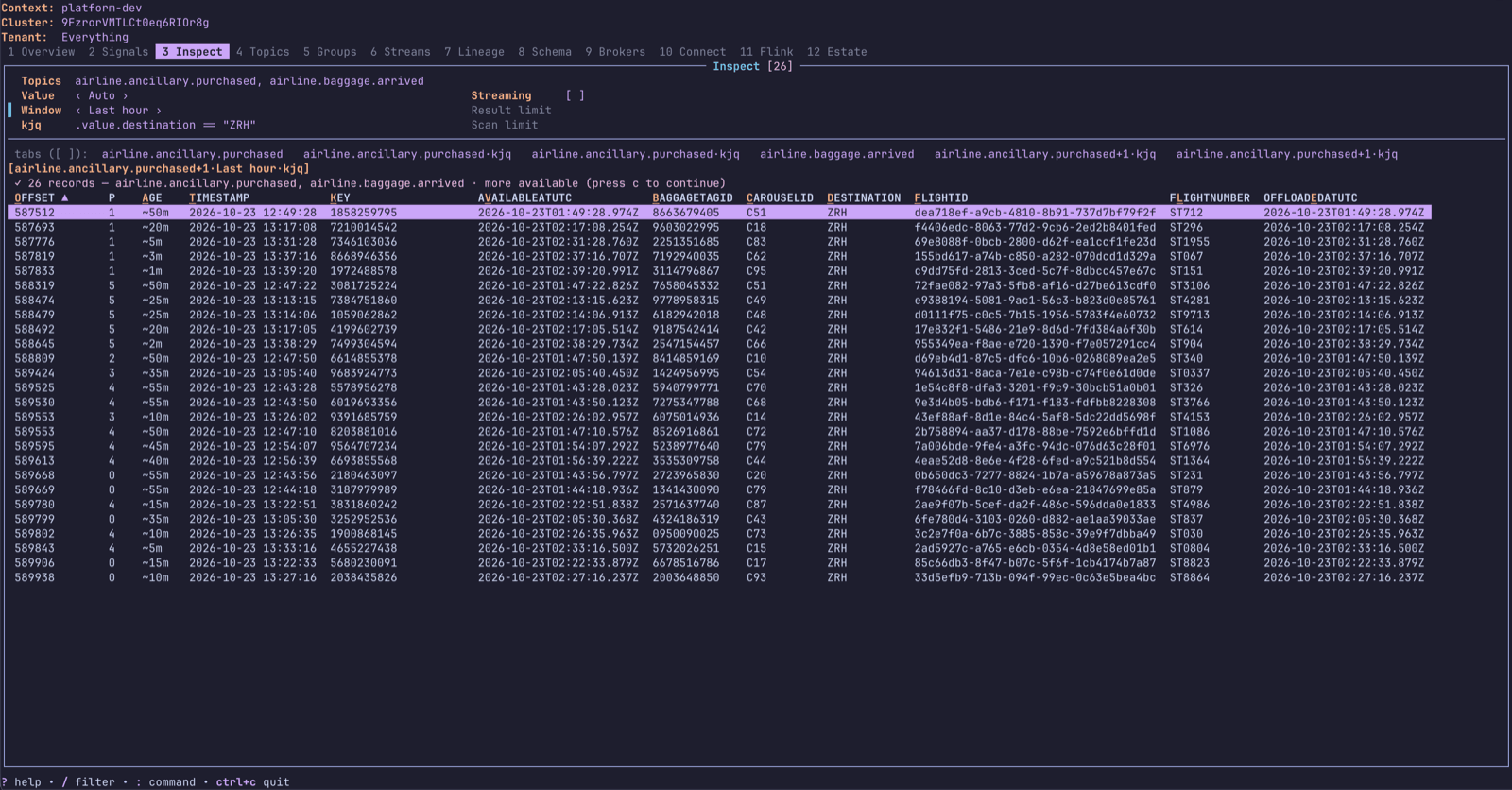
Data Inspect is my favourite part. From any topic in topic inspect, pressing i takes you straight into a search, and you can query several topics at once, each in its own tab. Most of the options from the web UI are here, including searching from the earliest offset, filtering with kJQ queries and running a streaming search.
Topic lineage
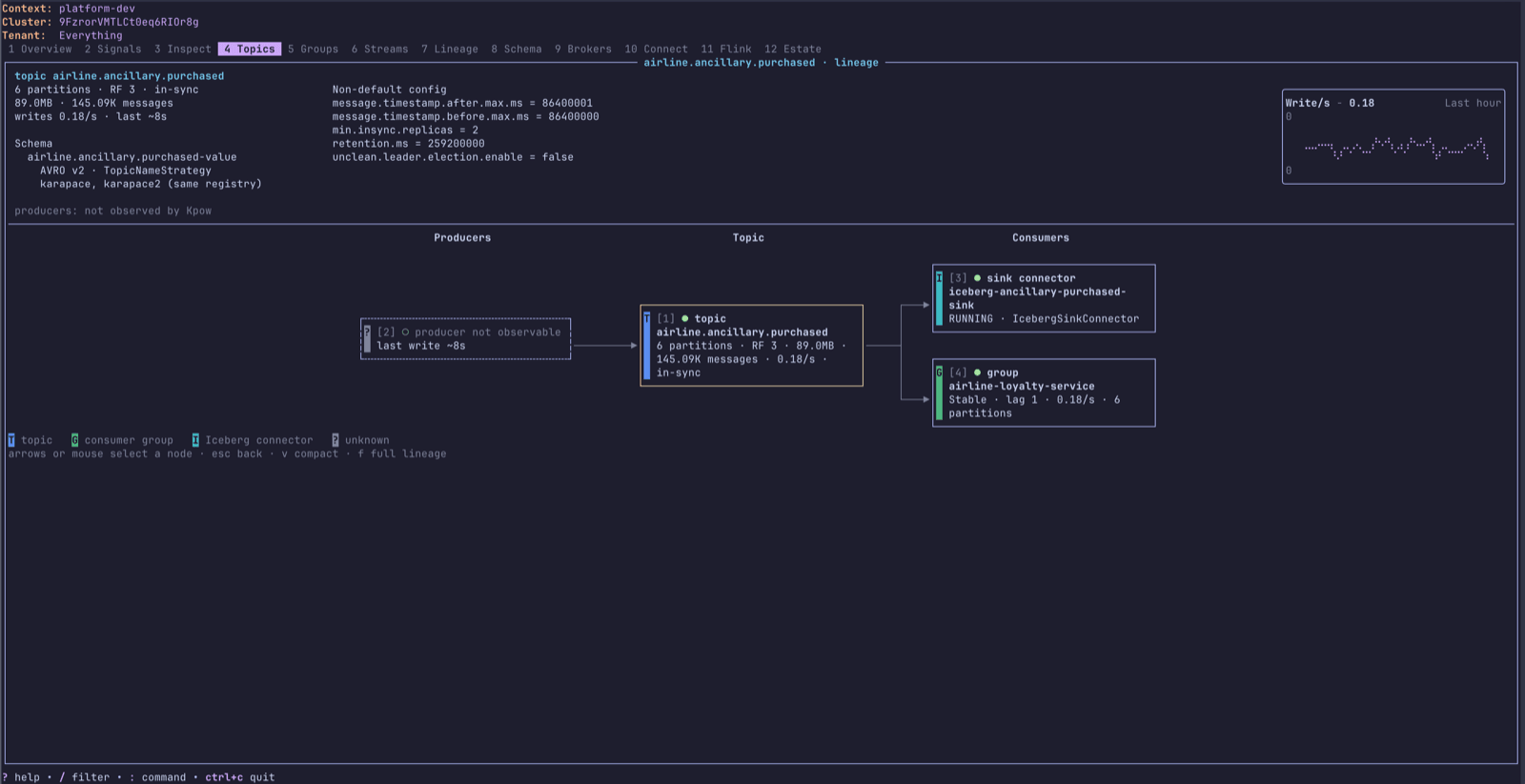
This is also my favourite feature! Pressing enter on a topic lays out its lineage left to right: the source connectors or other sources that write to it, the topic itself, then the sink connectors, consumer groups, Kafka Streams and Apache Flink applications that read from it. Each node is coloured by type, and health. The panel across the top shows the topic’s size, write rate, schema subjects and non-default configuration, so you can answer “what feeds this and who reads it” from one screen.
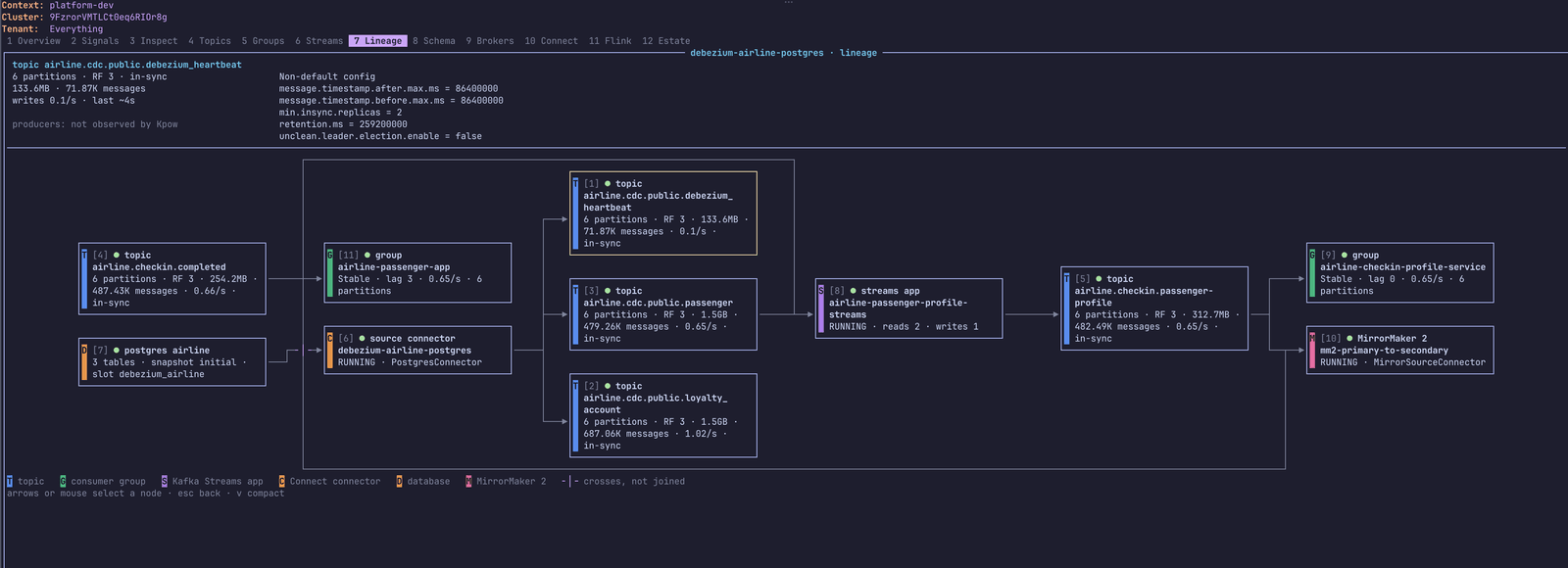
Coming soon is a cluster-wide Lineage view that follows the whole flow rather than one topic: from a Postgres database through a Debezium source connector, into the CDC topics, through a Kafka Streams application and out to the consumer groups and MirrorMaker 2 replication that read the result.
Consumer groups and offset resets
Selecting a consumer group shows its members, assignments, lag and consumption rates, the topics it subscribes to and any related ACLs. From the assignments tab, you can open the offset reset editor to move a member or a single partition to the offset you need, or skip a single message that a group cannot process.
Topics, Streams, schemas, Connect and Flink
On the topics view you can create topics, add partitions, edit a topic’s configuration and delete topics, after typing the topic name to confirm.
If you run Kafka Streams, you can navigate an application’s topology and see throughput and lag for each node. The schema view works across registries, including Confluent, Karapace and AWS Glue. The Connect view shows the state of every connector and task, which matters because a connector can report itself as running while its tasks are failing, and from there you can restart a connector or just its failed tasks, pause, resume, stop or delete it, and read a failed task’s stack trace. If you use Flex or Factor Platform, the Flink view shows your Flink clusters and jobs, and lets you stop a job with a savepoint, cancel it, trigger a checkpoint or read its logs.
Governance and security
Because the terminal UI goes through the Kpow API, it does not introduce a new access path to your clusters. You sign in with the authentication Kpow is already configured for: OpenID Connect through fh auth login, or a username and password.
Once you are signed in, the terminal UI applies the same controls as the Kpow web UI:
- Role-based access control determines which actions you can take, such as creating topics or resetting consumer group offsets.
- Multi-tenancy limits which topics, consumer groups, schemas and connectors you can see at all.
- Staged changes apply too. If Kpow requires approval for an action, the terminal UI submits it into the same approval workflow rather than around it.
For platform teams, this means you can give engineers a fast terminal workflow without maintaining a separate set of permissions for it.
Getting started
The terminal UI requires Kpow 96.5 or later with the Kpow API enabled, which is off by default. The Factor House CLI is available for macOS, Linux and Windows. Follow the CLI setup guide, connect to your deployment and run fh tui.
brew install --cask factorhouse/tap/fhIt works with every Kpow edition, including Community Edition. The same fh binary also carries the Kafka agent skills, so a coding agent can answer operational questions through the same API and permissions.
If you are new to Kpow, get a free 30-day trial licence or a Community Edition licence and try it against your own Kafka cluster. Kpow connects to any Kafka cluster in minutes and deploys via Docker, Helm or any way you run JAR files.