Overview
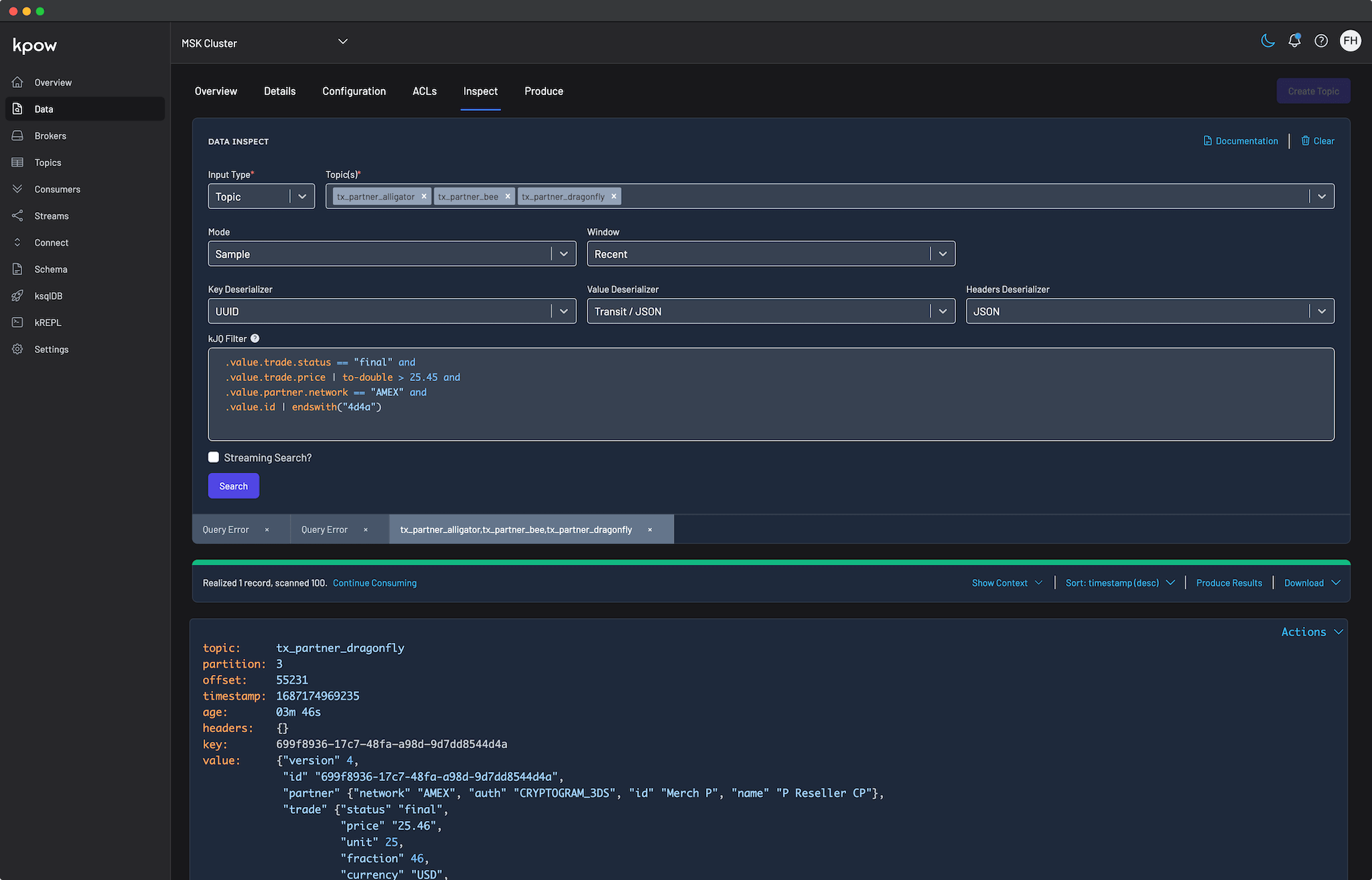
Managing real-time data pipelines on AWS requires robust visibility and control. Kpow is the all-in-one engineering toolkit designed to provide exactly that, offering a unified interface to monitor, manage, and explore your streaming infrastructure.
Built to work securely within the AWS ecosystem, Kpow is fully compatible with Amazon Managed Streaming for Apache Kafka (MSK) out of the box. Because it relies on standard Kafka protocols and integrates directly with AWS IAM, Kpow connects to your brokers seamlessly, eliminating the need for proprietary plugins, external agents, or complex sidecars.
Whether your architecture relies on the traditional Amazon MSK (Provisioned) offering for fine-grained configuration, or the auto-scaling Amazon MSK Serverless for operational simplicity, Kpow serves as a single pane of glass for your entire Kafka deployment.
About Factor House
Factor House is a leader in real-time data tooling, empowering engineers with innovative solutions for Apache Kafka® and Apache Flink®.
Our flagship product, Kpow for Apache Kafka, is the market-leading enterprise solution for Kafka management and monitoring.
Start your free 30-day trial or explore our live multi-cluster demo environment to see Kpow in action.
Prerequisites
To connect Kpow to Amazon MSK, you must have the following resources provisioned:
- A running Amazon MSK cluster: Either Provisioned or Serverless.
- Network reachability: The instance running Kpow must reside in the same VPC, or have peered access, with Security Groups allowing inbound traffic on the appropriate Kafka port.
- Connection Details & Authentication: MSK supports multiple authentication methods. You will need your Bootstrap Server URL and the corresponding port:
- IAM Access Control (Port 9098)
- SASL/SCRAM (Port 9096)
- mTLS (Port 9094)
- A Kpow Enterprise License: A valid license is required unless you are deploying via the AWS Marketplace.
Quick Start
The fastest way to connect Kpow to MSK is using our standard Enterprise Docker image.
Since IAM Access Control is the recommended, native AWS approach, the following example demonstrates an IAM connection. If you are running this on an EC2 instance, ECS task, or EKS pod with an attached IAM role, Kpow will automatically inherit the necessary permissions.
Run the following command in your terminal, replacing the placeholder values with your specific MSK details:
docker run -p 3000:3000 \
  --env BOOTSTRAP="[MSK_BOOTSTRAP_ADDRESS]:9098" \
  --env SECURITY_PROTOCOL="SASL_SSL" \
  --env SASL_MECHANISM="AWS_MSK_IAM" \
  --env SASL_JAAS_CONFIG="software.amazon.msk.auth.iam.IAMLoginModule required;" \
  --env SASL_CLIENT_CALLBACK_HANDLER_CLASS="software.amazon.msk.auth.iam.IAMClientCallbackHandler" \
  --env LICENSE_ID="<LICENSE_ID>" \
  --env LICENSE_CODE="<LICENSE_CODE>" \
  --env LICENSEE="<LICENSEE>" \
  --env LICENSE_EXPIRY="<LICENSE_EXPIRY>" \
  --env LICENSE_SIGNATURE="<LICENSE_SIGNATURE>" \
  factorhouse/kpow:latest
Notes
- License details: The license details can be obtained from your signup email or via the Factor House license portal.
- Authorization configuration: For brevity, Kpow authorization configuration has been omitted. See Simple Access Control to enable necessary user actions.
- Running outside AWS: If running Docker on a local machine or external server, provide static AWS credentials and region via environment variables by adding the following to the command above:
--env AWS_ACCESS_KEY_ID="xxx" \
--env AWS_SECRET_ACCESS_KEY="xxx" \
--env AWS_REGION="xxx"
Once the container starts, navigate to http://localhost:3000. You will see an overview of your MSK topics, brokers, and consumer groups.
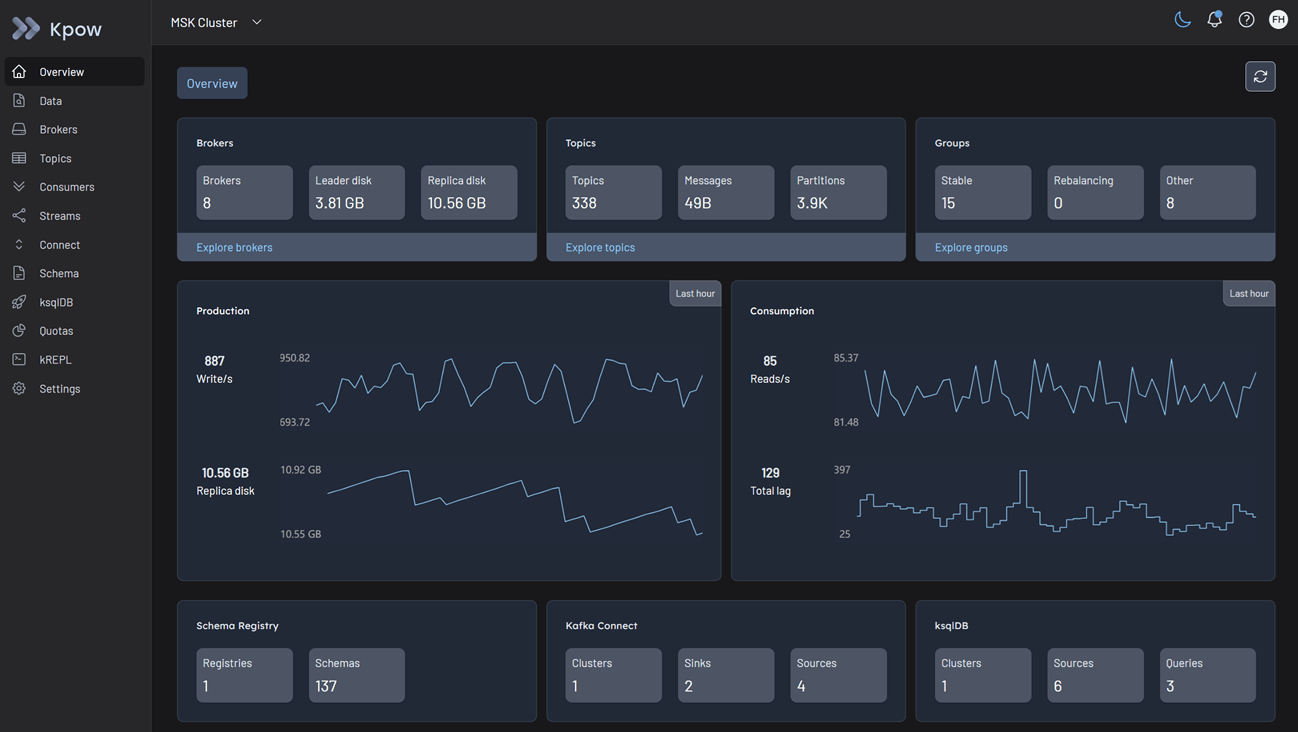
This screenshot displays a cluster with eight Kafka brokers and one instance each of Kafka Connect and Schema Registry. Your specific view will vary depending on your environment configuration.
Configuration Details
While standard Kafka configuration applies, Amazon MSK has specific authentication options and serverless constraints.
Authentication
Kpow offers first-class support for IAM Access Control, SASL/SCRAM, and mTLS. When using IAM, ensure your AWS principal has the necessary kafka-cluster:* permissions attached.
For a comprehensive list of configuration options, detailed IAM policy examples, and SCRAM/mTLS setups, refer to our Kpow MSK Provider Documentation and the Amazon MSK Documentation.
MSK Serverless Constraints
If you are connecting to an Amazon MSK Serverless cluster, you must add the following environment variable to your Kpow configuration:
--env KAFKA_VARIANT="MSK_SERVERLESS"This ensures Kpow creates its internal topics with the constrained topic configuration properties and service limitations specific to MSK Serverless.
Ecosystem Integration
Kpow provides comprehensive support for the AWS streaming ecosystem, allowing you to monitor and manage your wider MSK architecture natively.
Amazon MSK Connect
Kpow authenticates with Amazon MSK Connect using the AWS SDK (via the Default Credentials Chain, Static Credentials, or STS AssumeRole). You must specify the region where your Connect cluster is deployed:
- Kafka Connect Region:
--env CONNECT_AWS_REGION="us-east-1"
For cross-account setups and IAM policy requirements, see the MSK Connect integration guide.
AWS Glue Schema Registry
Kpow connects to the AWS Glue Schema Registry using environment variables. Similar to MSK Connect, it authenticates using the AWS SDK.
- Schema Registry ARN:
--env SCHEMA_REGISTRY_ARN="arn:aws:glue:us-east-1:123456789012:registry/my-registry" - Schema Registry Region:
--env SCHEMA_REGISTRY_REGION="us-east-1"
For more details, see the Glue Schema Registry integration guide.
Production Deployment
When you are ready to move from a local Docker test to a production deployment, we highly recommend utilizing the AWS Marketplace.
AWS Marketplace (Recommended)
Kpow integrates seamlessly with AWS and is easy to deploy directly from the AWS Marketplace.
Marketplace containers are automatically licensed to your AWS account, meaning you do not need to arrange a separate license key with us. Usage is billed directly through your AWS invoice.
- Kpow Hourly: Pay-as-you-go with no ongoing commitment. Ideal for ECS and Fargate.
- Kpow Annual: For long-term commitments and Enterprise Discount Program (EDP) purchases.
For a complete walkthrough, see our guide: Deploy Kpow on EKS via AWS Marketplace using Helm.
Kubernetes (BYOL)
If you have a direct Enterprise License (Bring Your Own License) and want to run Kpow on Amazon EKS , we recommend using our official Helm Installation Guide.
VM / Bare Metal (BYOL)
For running Kpow directly on an Amazon EC2 instance, you can use the Kpow JAR artifact.
Conclusion
Kpow provides a single pane of glass for your Amazon MSK infrastructure, making it easy to monitor and manage your data streams, connectors, and schemas in real-time.
Explore these features in your own environment with a free 30-day trial of Kpow.
If you need assistance with your Amazon MSK integration, reach out to our engineering support team at [email protected].
Related Content
- Set Up Kpow with Confluent Cloud
- Set Up Kpow with Google Cloud Managed Service for Apache Kafka
- How to Integrate Kpow with OCI Streaming with Apache Kafka
- Set Up Kpow with NetApp Instaclustr Platform
For the broader context on operating Kafka, see the complete guide to Kafka.