Self-service Kafka governance with ServiceNow
How-toOverview
Managing access to Kafka resources often presents a dilemma: how do you maintain strict security without slowing down engineering teams? Manual Role-Based Access Control (RBAC) updates are often slow, prone to human error, and create significant administrative bottlenecks.
By integrating Kpow with ServiceNow, we can implement a “Just-in-Time” (JIT) access model. This approach allows users to request temporary permissions through a self-service portal, ensuring that access is granted only when needed and revoked automatically when a task is complete.
Key Benefits of this Integration
- Just-in-Time Access: Grant permissions only for the specific duration required for a task, reducing the risk of stale or over-privileged accounts.
- Self-Service Efficiency: Empower engineers to request their own access via the ServiceNow Service Catalog, removing Kafka administrators from the critical path of daily data queries.
- Standardized Governance: Leverage ServiceNow’s robust approval engine to ensure every access request is authorized by the correct data owner and fully audited.
- Operational Security: Scopes access to specific clusters and topics, enforcing the principle of least privilege while maintaining an automated lifecycle from request to revocation.
About Factor House
Factor House is a leader in real-time data tooling, empowering engineers with innovative solutions for Apache Kafka® and Apache Flink®.
Our flagship product, Kpow for Apache Kafka, is a Kafka UI for searching, monitoring, and managing Apache Kafka clusters, with role-based access control, data masking, and audit logging for enterprise teams.
Explore our live multi-cluster demo environment or try Kpow Enterprise for free and dive into streaming tech on your laptop with Factor House Local.
Prerequisites
To follow this guide, you will need the following components and configurations:
ServiceNow Environment
- ServiceNow PDI : A Personal Developer Instance available for free at developer.servicenow.com. It has been tested on the Zurich release.
- IntegrationHub Plugin: The Professional or Enterprise version is required to use the REST and JSON Parser steps in Action Designer.
- Connectivity: Valid network access from the ServiceNow cloud to your Kpow API. This can be achieved using a MID Server, a cloud deployment, or a reverse proxy.
Kpow Configuration
- API & Port: Enable Kpow API (
API_ENABLED=true) on port4000for this guide or the port on your configuration. - Auth & RBAC: This guide uses Jetty-based File Authentication with a
realm.properties(Auth) andhash-rbac.yml(RBAC). Configure JAAS and environment variables (e.g.,AUTH_PROVIDER_TYPE=jettyandAPI_AUTH_PROVIDER_TYPE=jetty) to manage credentials and access roles.
Credential, Connection, and Alias
- Credential: Create an HTTP Basic Auth record and enter the username and password.
- Connection and Alias: Configure these records to link the credentials and the Kpow connection URL.
The specific username, password, and connection URL values used for these records are found in the Environment Setup section.
Environment Setup
This guide uses a Kafka cluster and Kpow instance deployed locally via Docker Compose. You can find the complete setup in the features/servicenow folder of the Factor House examples GitHub repository.
ServiceNow Configuration Values
During the ServiceNow setup, you will need the following values derived from your Kpow configuration to establish the integration:
- Username: The username defined in your
realm.properties(e.g.,admin). - Password: The password associated with that user.
- Connection URL: The accessible endpoint of your Kpow API (e.g.,
https://kpow.your-domain.comor your tunnel URL).
Note on Cloud Connectivity: Because the ServiceNow PDI is a cloud service, the Connection URL must be an endpoint that is reachable over the internet or through a ServiceNow MID Server. Ensure that your firewall or proxy settings allow inbound traffic from ServiceNow to the Kpow API port (4000 for this guide or the port on your configuration).
Authentication and Roles
We define two users in jaas/hash-realm.properties with the following credentials:
- admin (password: admin): Assigned the
kafka-adminsrole. ServiceNow will use these credentials to create and delete temporary policies. Please ensure the user also has the TOPIC_DATA_QUERY permission, as it is required to create a temporary policy that includes this action. - user (password: password): Assigned the
kafka-usersrole. This is our “standard user” who initially lacks permission to query data.
The rbac/hash-rbac.yml file defines what these roles can do:
admin_roles:
  - "kafka-admins"

authorized_roles:
  - "kafka-admins"
  - "kafka-users"

policies:
  - actions:
      - ...
      # TOPIC_INSPECT encapsulates both TOPIC_DATA_QUERY and TOPIC_DATA_DOWNLOAD
      - TOPIC_INSPECT
      - ...
    effect: Allow
    resource:
      - cluster
      - "*"
    role: "kafka-admins"
  # Note: No "Allow" policies are defined for kafka-users initially.
Baseline Verification
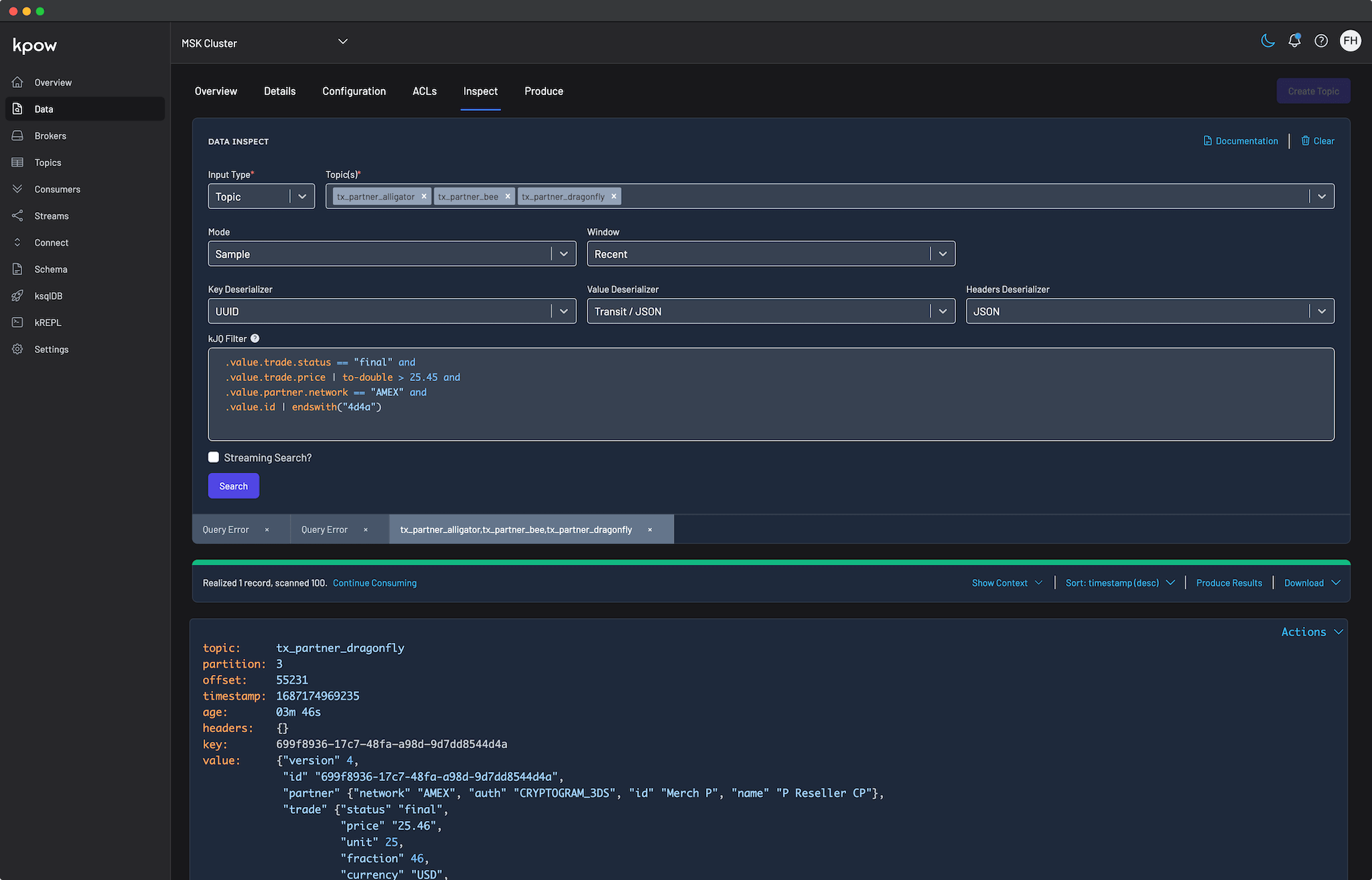
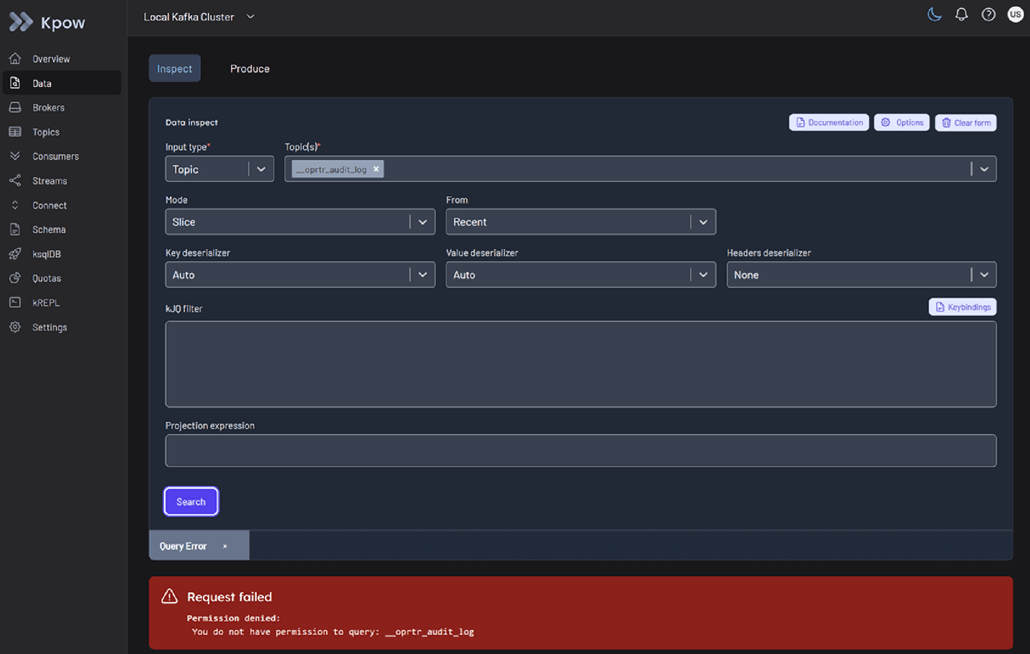
Before starting the ServiceNow integration, confirm that the standard user does not have permission to inspect a topic:
- Start the services from the
features/servicenowdirectory:docker compose up -d- Ensure the
KPOW_LICENSEenvironment variable points to your license file before launching. Alternatively, place the license file in./config/license.env.
- Ensure the
- Log into the Kpow UI (port 3000) as the user (password: password).
- Attempt to Inspect any topic.
- Result: The user should be unable to view messages. This confirms our “Access Denied” starting point.
API Example
In this example, we configure a ServiceNow workflow to create and delete temporary policies using the Kpow Admin API. For full request/response schemas and additional fields, see the official documentation:
Authentication is performed using HTTP Basic Auth with admin user credentials. The Authorization header must be included with every request.
Create a Temporary Policy
POST /admin/v1/temporary-policies
- Method:
POST - Path parameters: None
- Request body: JSON payload (required)
- Headers:
Authorization: Basic <base64-encoded-credentials>Content-Type: application/json
The request body must include:
duration_ms: How long the policy remains active (in milliseconds).policy:role: User role to which this temporary policy is assigned.actions: Actions associated with the temporary policy.effect:Allow,DenyorStage.resource: Resource to which the policy applies to.
API_URL=http://localhost:4000
AUTH_HEADER=$(echo "Authorization: Basic $(echo -n 'admin:admin' | base64)")

# Create a temporary policy
curl $API_URL/admin/v1/temporary-policies \
  -X POST \
  -H 'Content-Type: application/json' \
  -H "$AUTH_HEADER" \
  -d '{
  "duration_ms": 3600000,
  "policy": {
    "role": "kafka-users",
    "actions": [
      "TOPIC_DATA_QUERY"
    ],
    "effect": "Allow",
    "resource": ["cluster", "42RglGpZQwy9D5VzTVpCWA", "topic", "__oprtr_audit_log"]
  }
}'Example Response
{
"temporary_policy": {
    "id": "0de3f8b1-8e1b-42e1-a99f-132e3c580e3f",
    "created_ts": 1772169681579,
    "duration_ms": 3600000,
    "policy": {
      "role": "kafka-users",
      "actions": ["TOPIC_DATA_QUERY"],
      "resource": [
        "cluster",
        "42RglGpZQwy9D5VzTVpCWA",
        "topic",
        "__oprtr_audit_log"
      ],
      "effect": "Allow"
    }
  },
  "metadata": {
    "response_id": "7751c40a-23b5-4a1f-aae5-86888fc67ced",
    "is_staged": false,
    "tenant_id": "__kpow_global"
  }
}This request creates a temporary policy that grants the kafka-users role permission to perform TOPIC_DATA_QUERY on the specified topic for one hour (3,600,000 milliseconds).
Delete a Temporary Policy
API_URL=http://localhost:4000
AUTH_HEADER=$(echo "Authorization: Basic $(echo -n 'admin:admin' | base64)")

# ID returned from the create request
POLICY_ID=0de3f8b1-8e1b-42e1-a99f-132e3c580e3f

# Delete the temporary policy
curl -X DELETE \
  -H "$AUTH_HEADER" \
$API_URL/admin/v1/temporary-policies/$POLICY_IDA successful delete request returns no response body.
Skip the Manual Setup (Optional)
If you prefer to dive straight into the demonstration, you can skip the manual creation of actions, catalog items, and flows by importing a pre-configured ServiceNow Update Set.
- Download the
kpow_integration_update_set.xmlfile from the Factor House examples repository. - In your ServiceNow PDI, navigate to System Update Sets > Retrieved Update Sets.
- Click the Import Update Set from XML related link and upload the downloaded file.
- Open the Kpow Kafka Governance Integration record, click Preview Update Set , and then click Commit Update Set.
Note: After importing, you must still manually configure your Credential and Connection records as described in the Prerequisites to point to your specific Connection URL and API credentials.
Create ServiceNow Actions
ServiceNow Actions allow us to encapsulate Kpow API calls into reusable building blocks that can be easily dropped into any Flow. We will create two custom actions using the Action Designer.
Kpow - Create Temporary Policy
This action handles the JSON payload construction and parses the response to extract the unique ID of the newly created policy.
Define Inputs
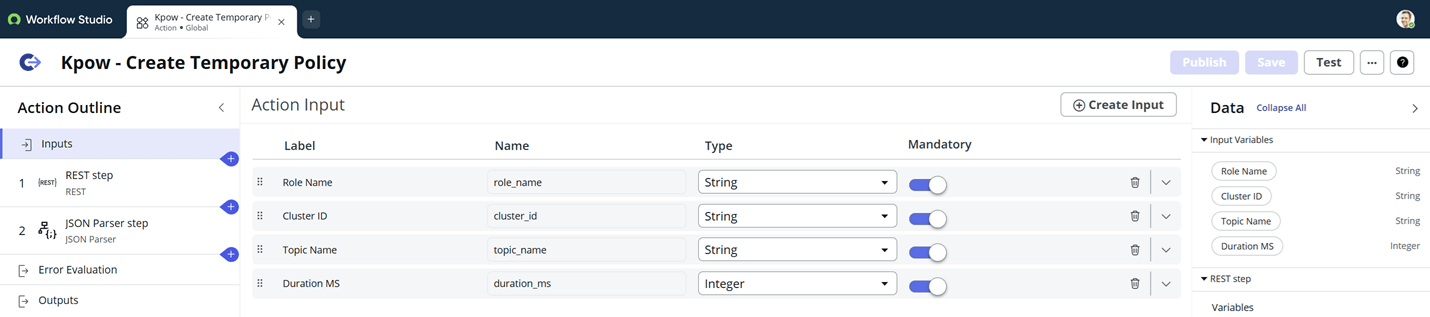
We define four inputs that correspond to the parameters required by the Kpow API:
- Role Name : The Kpow role to receive access (e.g.,
kafka-users). - Cluster ID : The unique identifier of the Kafka cluster.
- Topic Name : The specific topic for which access is requested.
- Duration MS : The lifespan of the policy in milliseconds.
Configure the REST Step
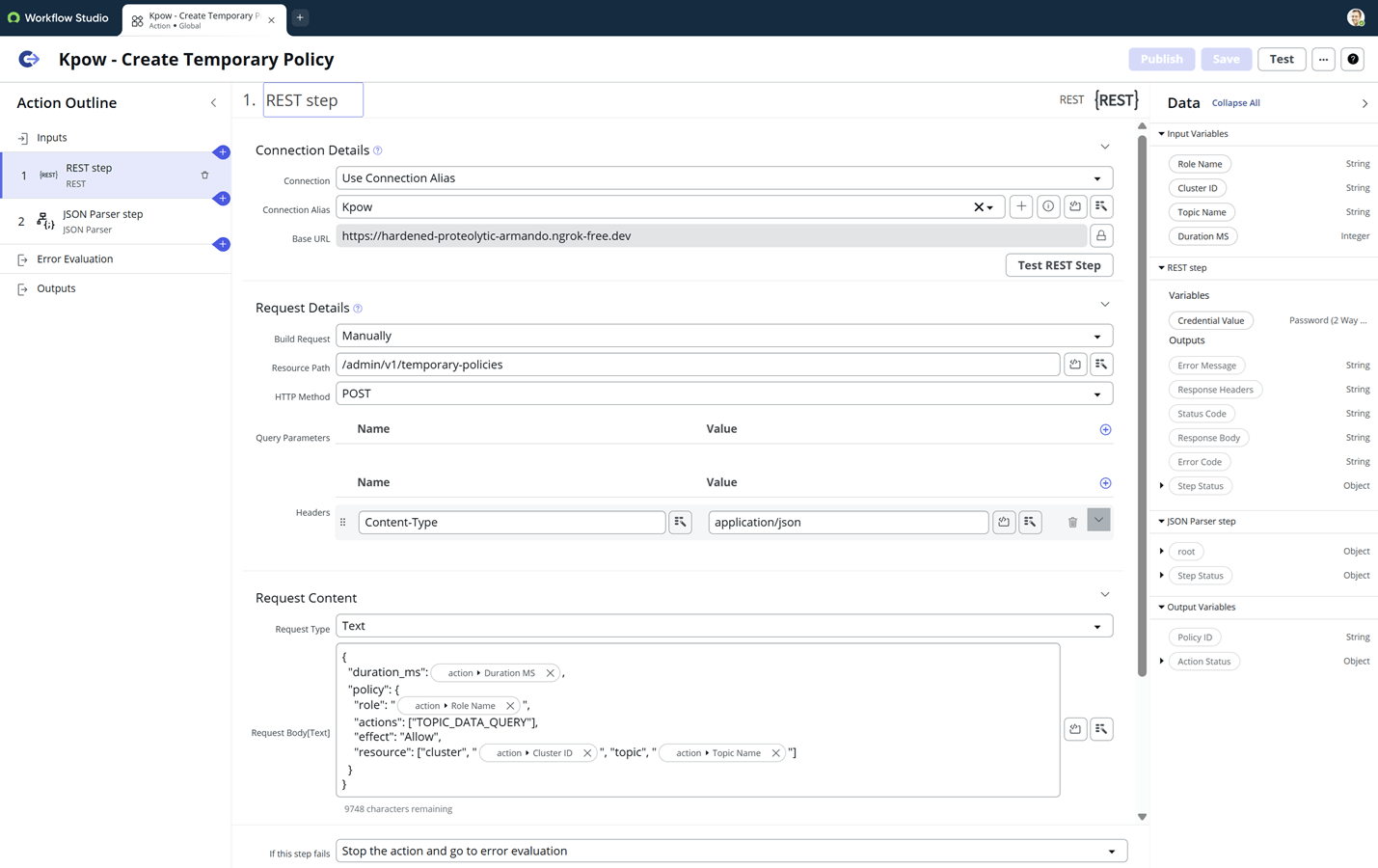
In the REST step, we configure the connection to our Kpow API:
- Connection Details : Select the Kpow Connection Alias created in the prerequisites.
- Build Request : Manual.
- Resource Path :
/admin/v1/temporary-policies - HTTP Method :
POST - Headers : Add
Content-Type: application/json. - Request Body : We construct the JSON payload here. Use the Data Pill Picker on the right to drag and drop the input variables into the JSON structure.
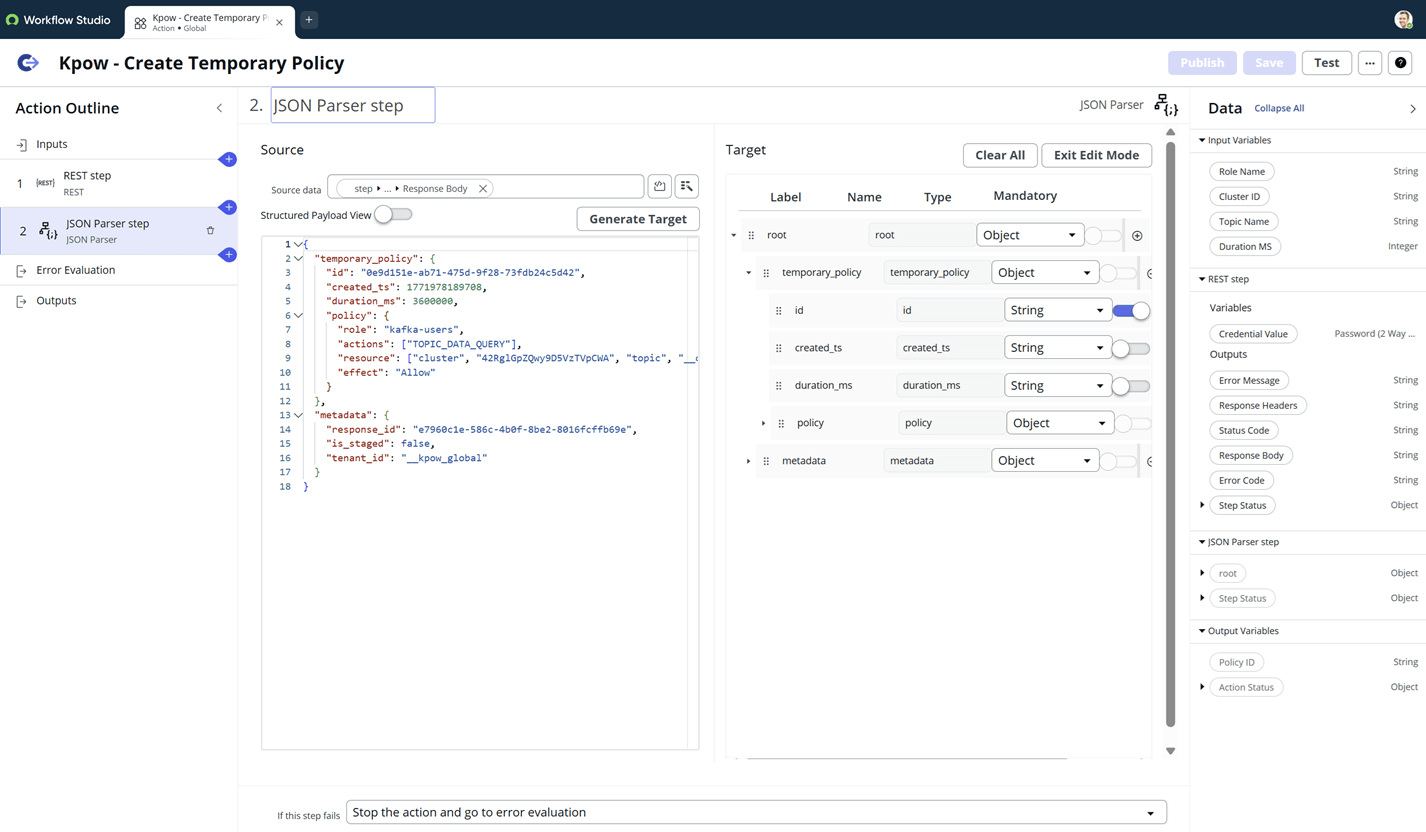
Parse the JSON Response
To revoke access later, we must capture the id returned by Kpow. We use the JSON Parser step:
- Source Data : Select the Response Body from the REST step.
- Root Element : Map the schema by pasting a sample response into the source editor and clicking Generate Target.
- Target Mapping : Locate
root > temporary_policy > idand mark it as mandatory.
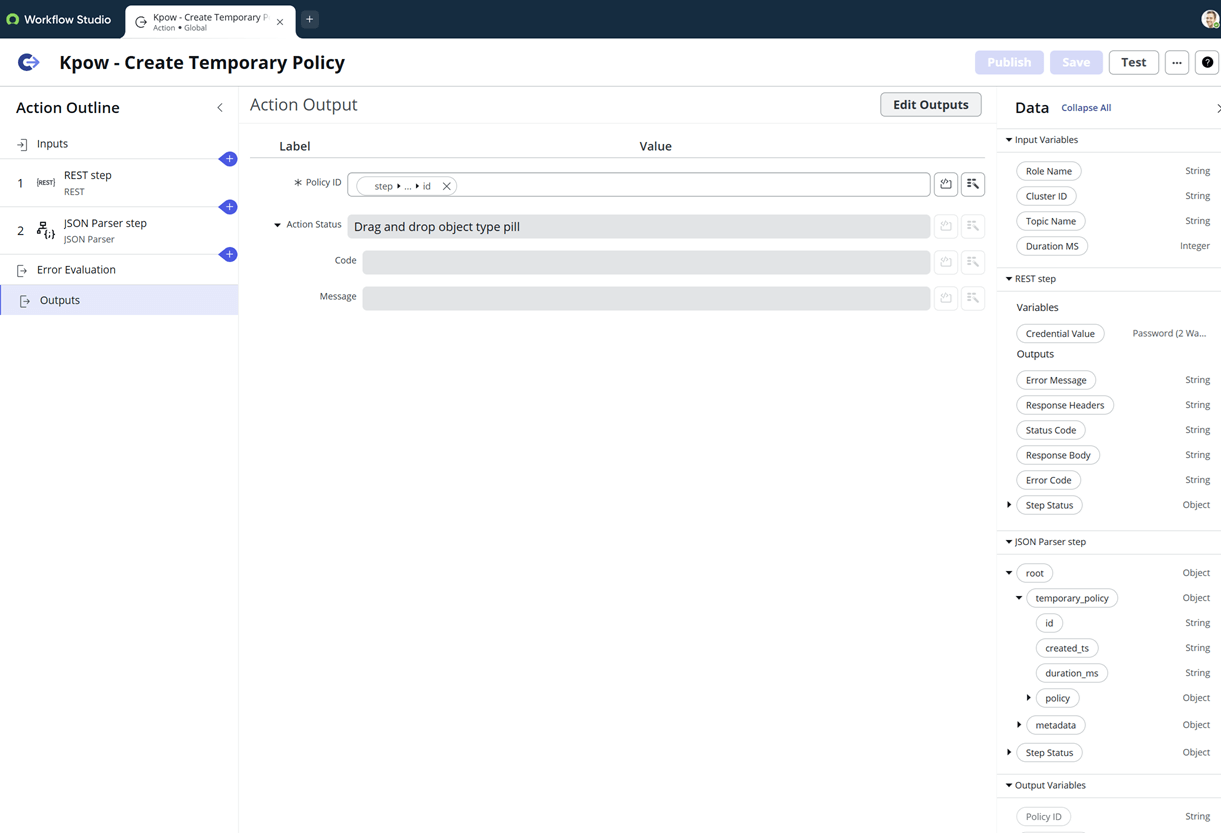
Define Outputs
Finally, create an action output named Policy ID (policy_id) and map it to the id extracted by the JSON Parser. This makes the ID available for the “Delete” step in our Flow.
Product demo · 2 min
Apache Kafka temporary access & just-in-time permissions: Kpow demo
Chad Harris walks through time-boxed, API-driven permissions in Kpow: granting scoped access to a role for a set duration that expires automatically, and wiring temporary policies to a service desk like Jira or ServiceNow for just-in-time approval workflows.
Kpow - Delete Temporary Policy
This action is used to revoke access, either manually or at the end of a scheduled workflow.
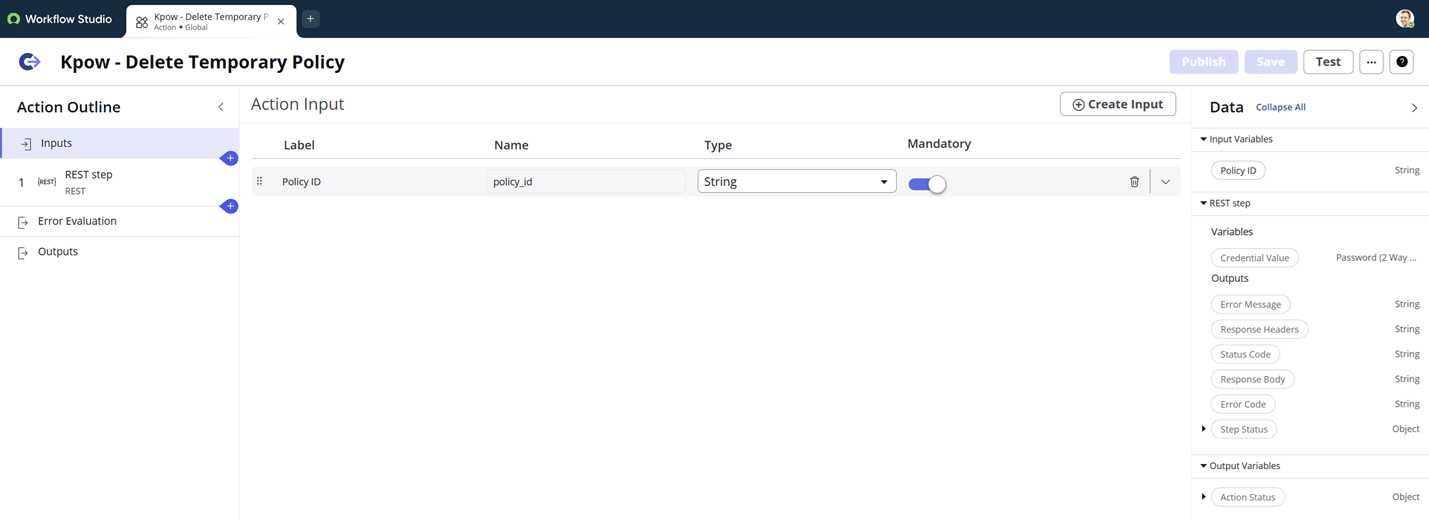
Define Inputs
This action requires only a single input:
- Policy ID : The unique UUID of the policy to be deleted (captured from the Create action).
Configure the REST Step
- Connection Details : Use the same Kpow Connection Alias.
- HTTP Method :
DELETE - Resource Path :
/admin/v1/temporary-policies/{policy_id} - Path Parameters : Map the
{policy_id}variable in the path to the Policy ID input defined in the first step.
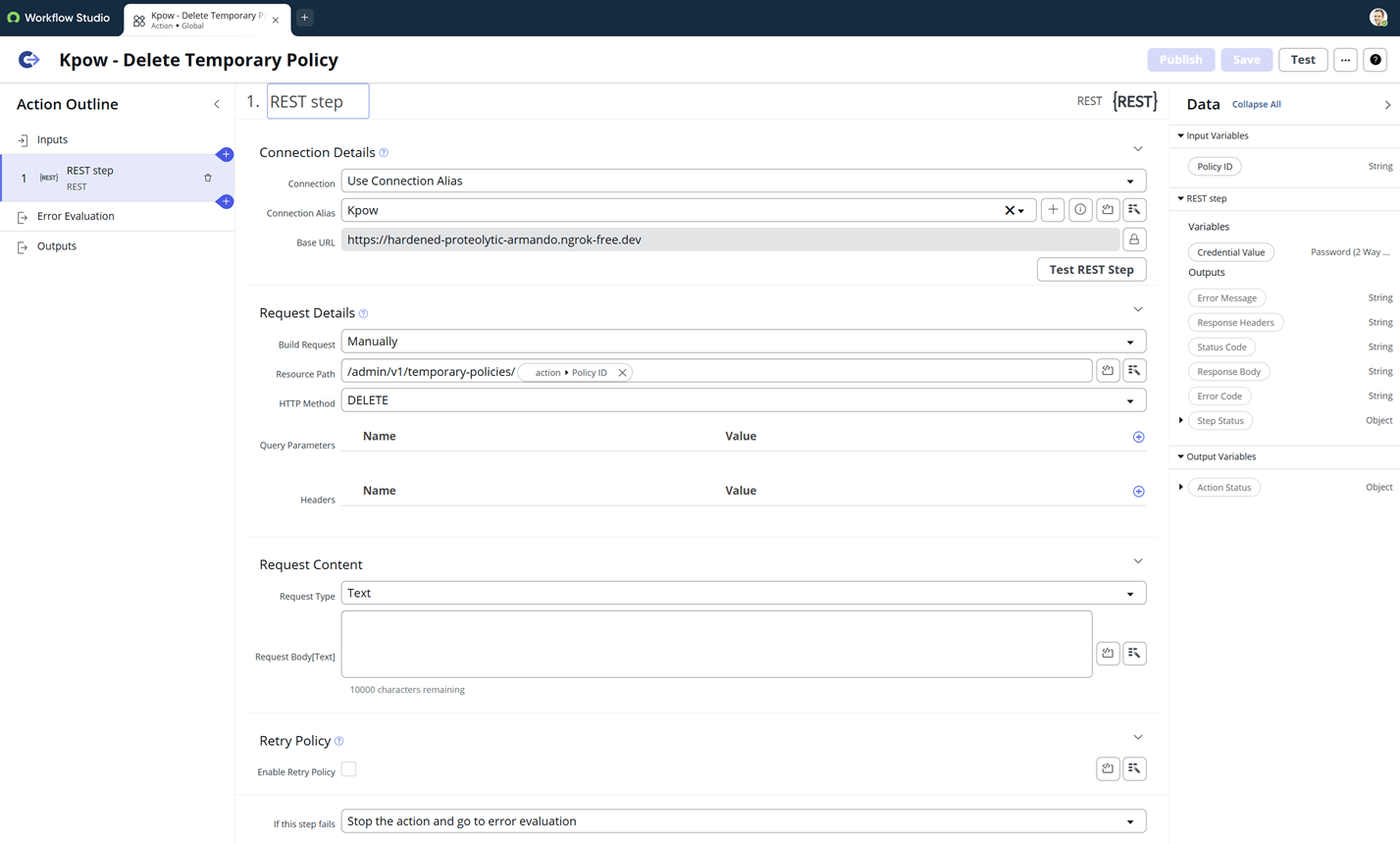
When this action is executed, ServiceNow sends a DELETE request to Kpow, which immediately revokes the temporary permissions associated with that ID.
Create ServiceNow Catalog Item
The Service Catalog item is the user-facing portal where team members can request access. This interface collects the specific Kafka details required to generate a temporary policy.
Configure the Catalog Item
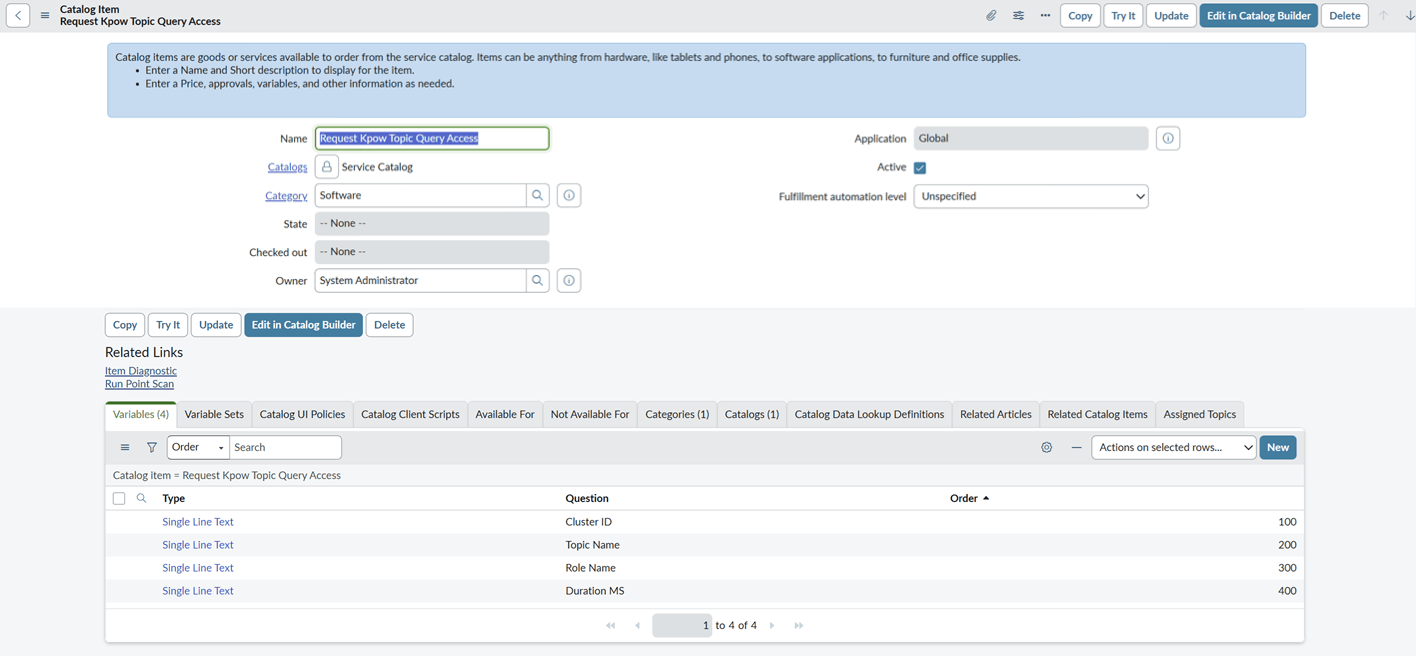
Navigate to Service Catalog > Catalog Definitions > Maintain Items and create a new record with the following settings:
- Name: Request Kpow Topic Query Access
- Catalogs: Service Catalog
- Category: Software
- Application: Global
- Short Description: Request temporary Just-in-Time (JIT) query access for a specific Kafka topic.
Define Variables
To pass the correct data to the Kpow - Create Temporary Policy action, we must create four variables. These variables act as the form fields the user fills out during the request.
For this demonstration, we set all types to Single Line Text. In a production environment, you might use Select Box or Reference types to pull cluster IDs or topic names directly from your Configuration Management Database (CMDB).
- Cluster ID: The unique ID of the target Kafka cluster.
- Topic Name: The name of the topic the user needs to inspect.
- Role Name: The Kpow role the user currently holds (e.g.,
kafka-users). - Duration MS: The length of time the access should remain active (e.g.,
3600000for one hour).
Use the Order field to ensure the variables appear in a logical sequence on the request form.
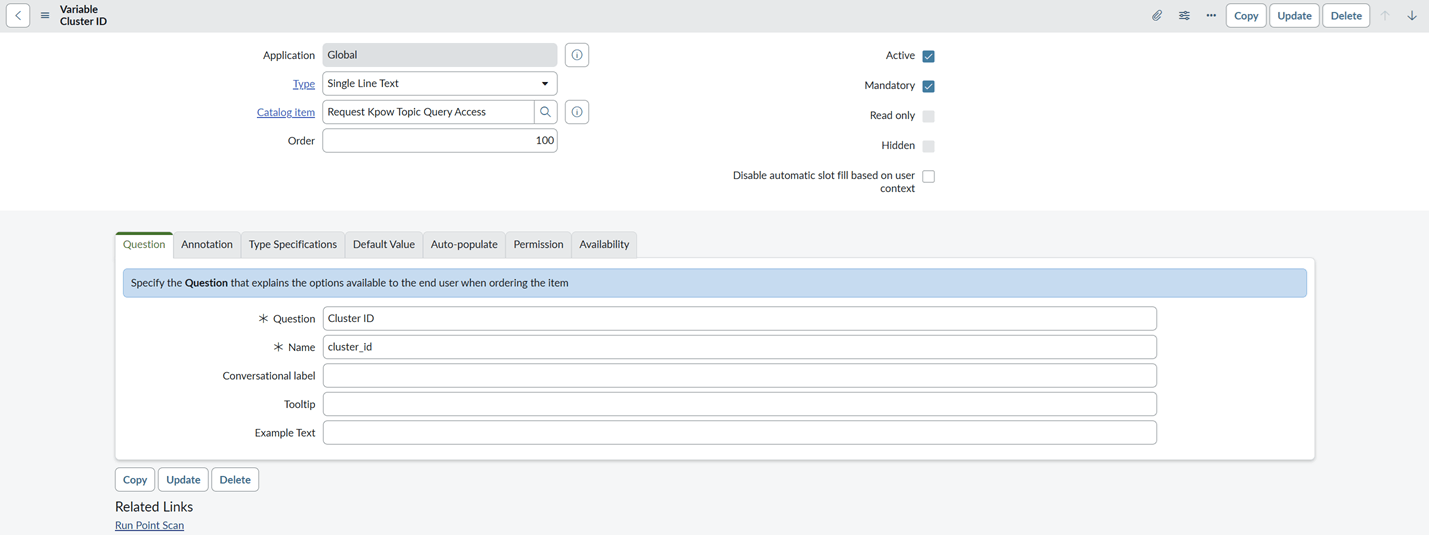
Once saved, this item is ready to be linked to our automated workflow in the next step.
Create ServiceNow Flow
With our custom actions and catalog item ready, we use Flow Designer to orchestrate the end-to-end lifecycle. This flow manages the request from the initial request through to the automatic revocation of access.
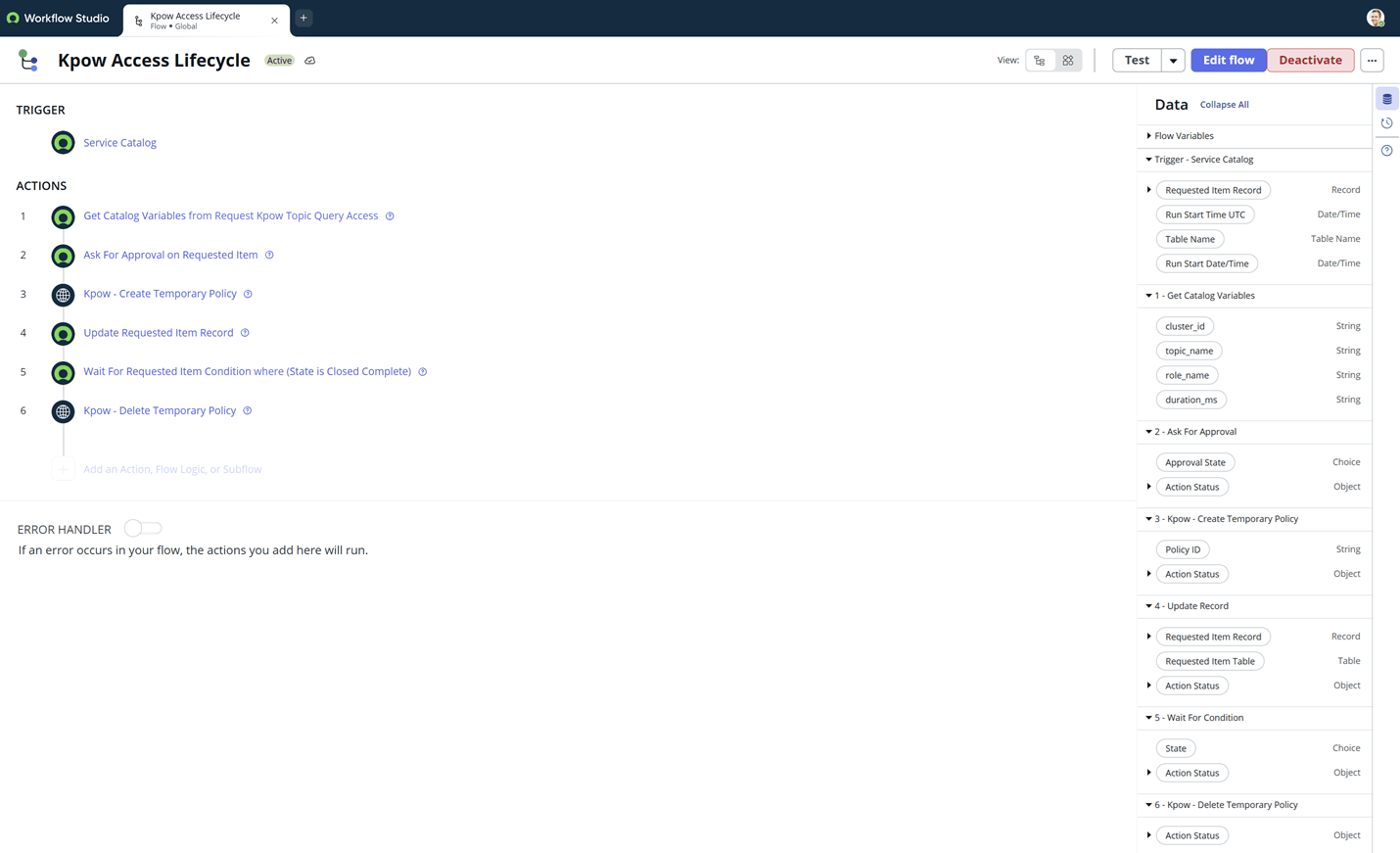
Flow Overview
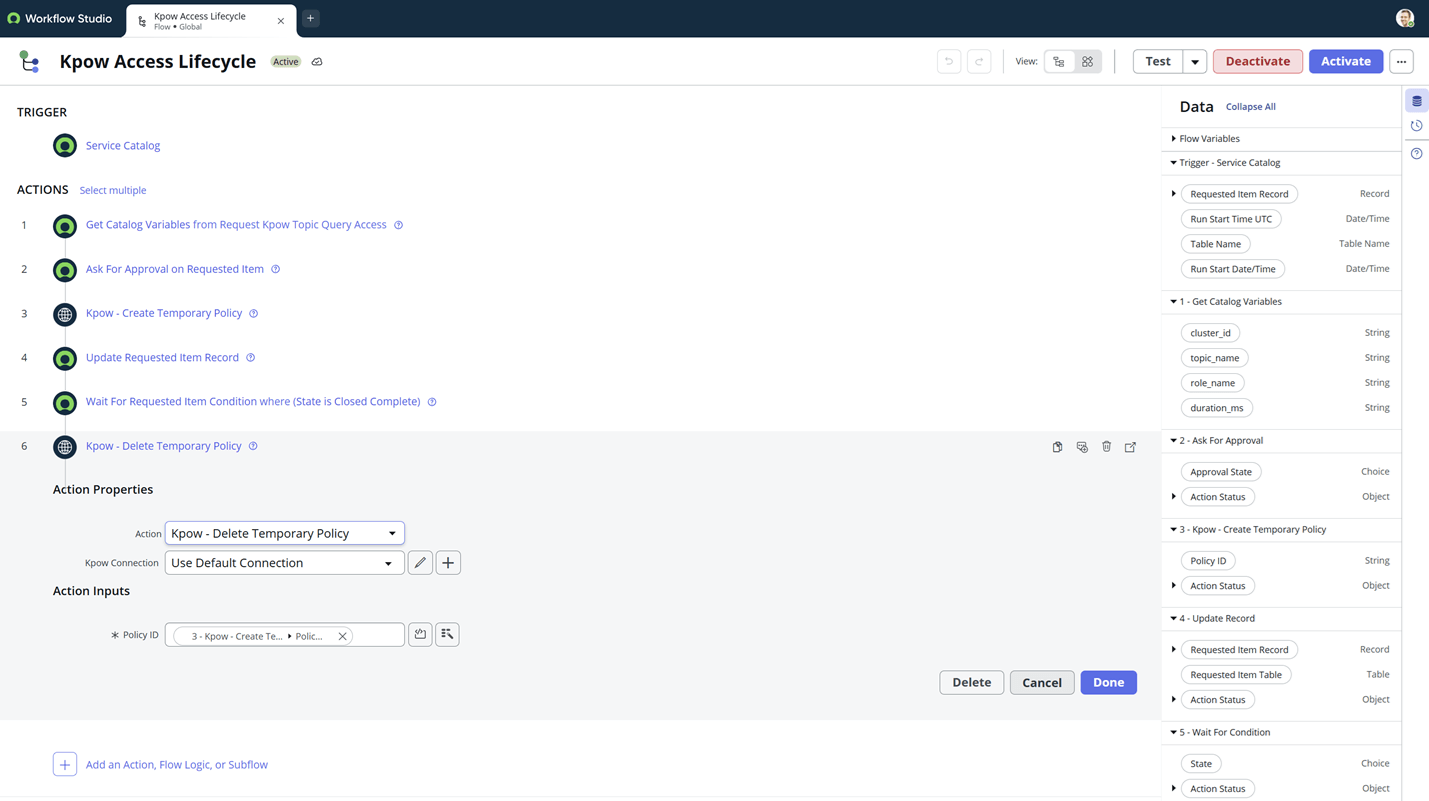
The flow (Kpow Access Lifecycle) is triggered by the Service Catalog and consists of six distinct steps designed to handle data extraction, governance, and integration.
Step 1: Get Catalog Variables
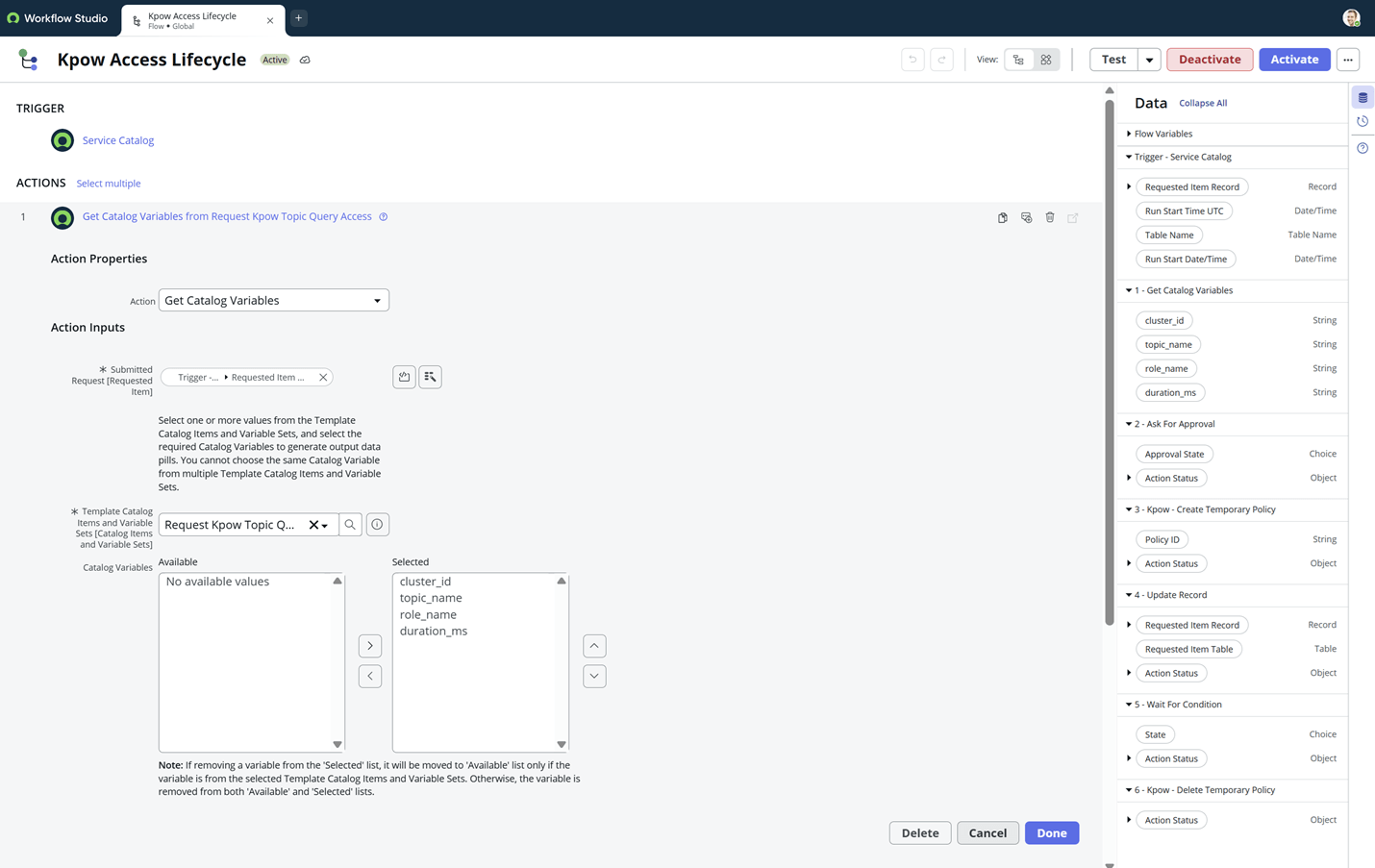
To use the data submitted in the request form, we must first extract the variables.
- Action: Get Catalog Variables
- Submitted Request: Drag the Requested Item Record pill from the trigger.
- Catalog Item: Select Request Kpow Topic Query Access.
- Variables: Move all four variables (Cluster ID, Topic Name, Role Name, Duration MS) to the selected list.
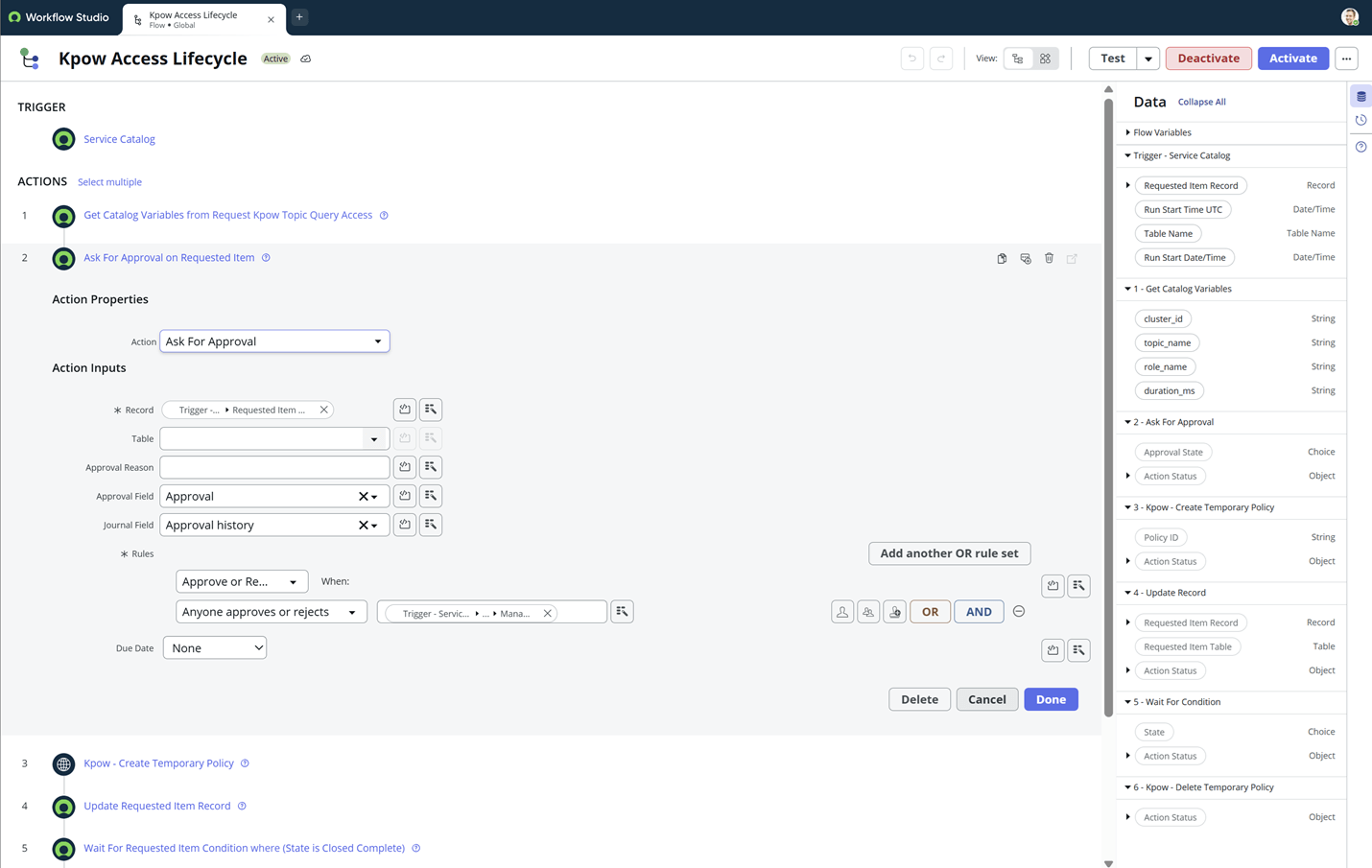
Step 2: Ask For Approval
Before any technical changes occur, the request must be authorized.
- Action: Ask For Approval
- Record: Requested Item Record
- Rules: Approve or Reject when Anyone approves or rejects.
- Approver: Map this to
Trigger > Requested Item Record > Opened By > Manager.- Note: In a production environment, you would typically route this to Data Owners or Kafka Infrastructure Admins.
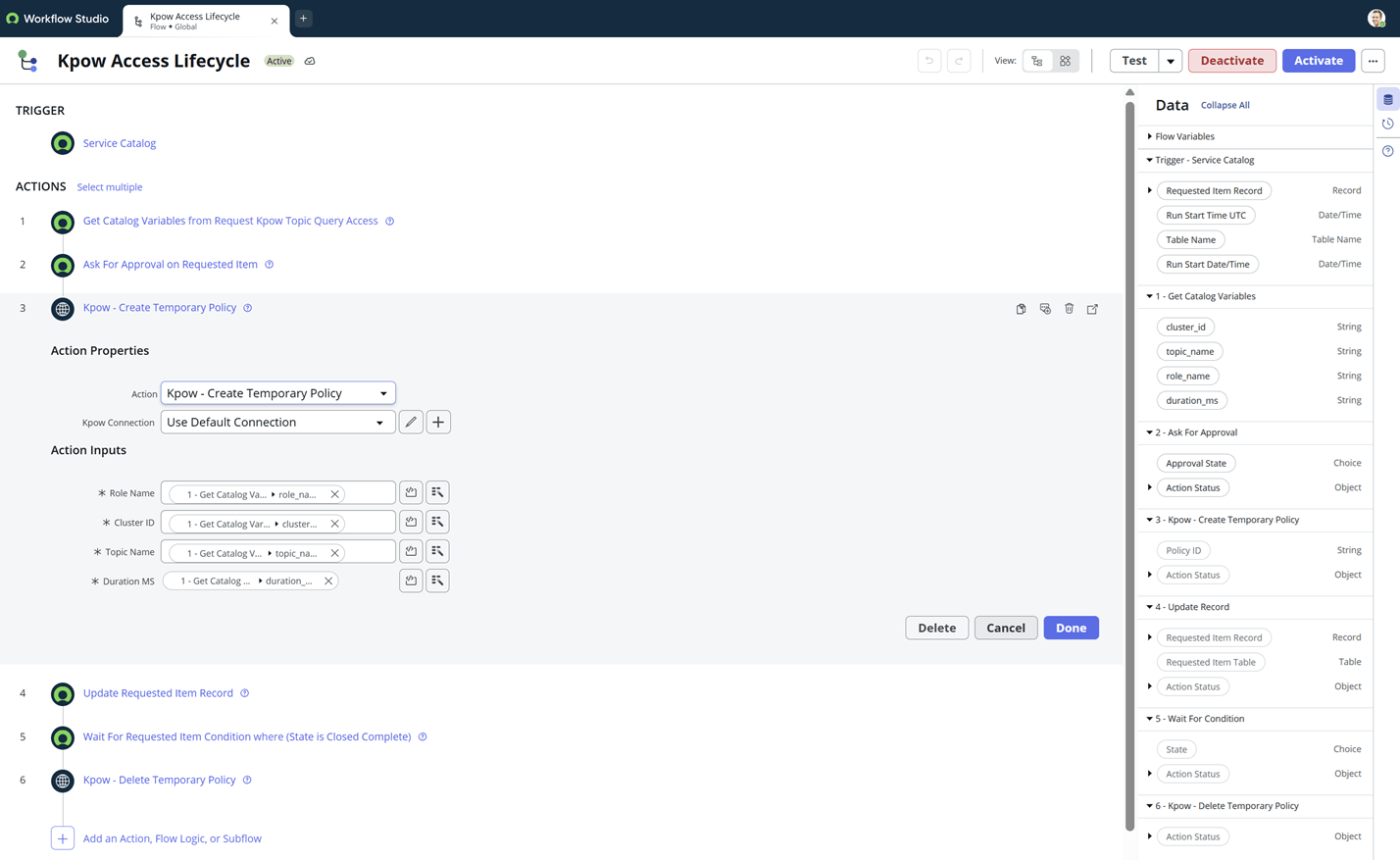
Step 3: Kpow - Create Temporary Policy
Once approved, the flow triggers the Just-in-Time (JIT) access creation via the Kpow API.
- Action: Kpow - Create Temporary Policy
- Inputs: Drag the variables extracted in Step 1 into the corresponding fields (Role, Cluster, Topic, and Duration).
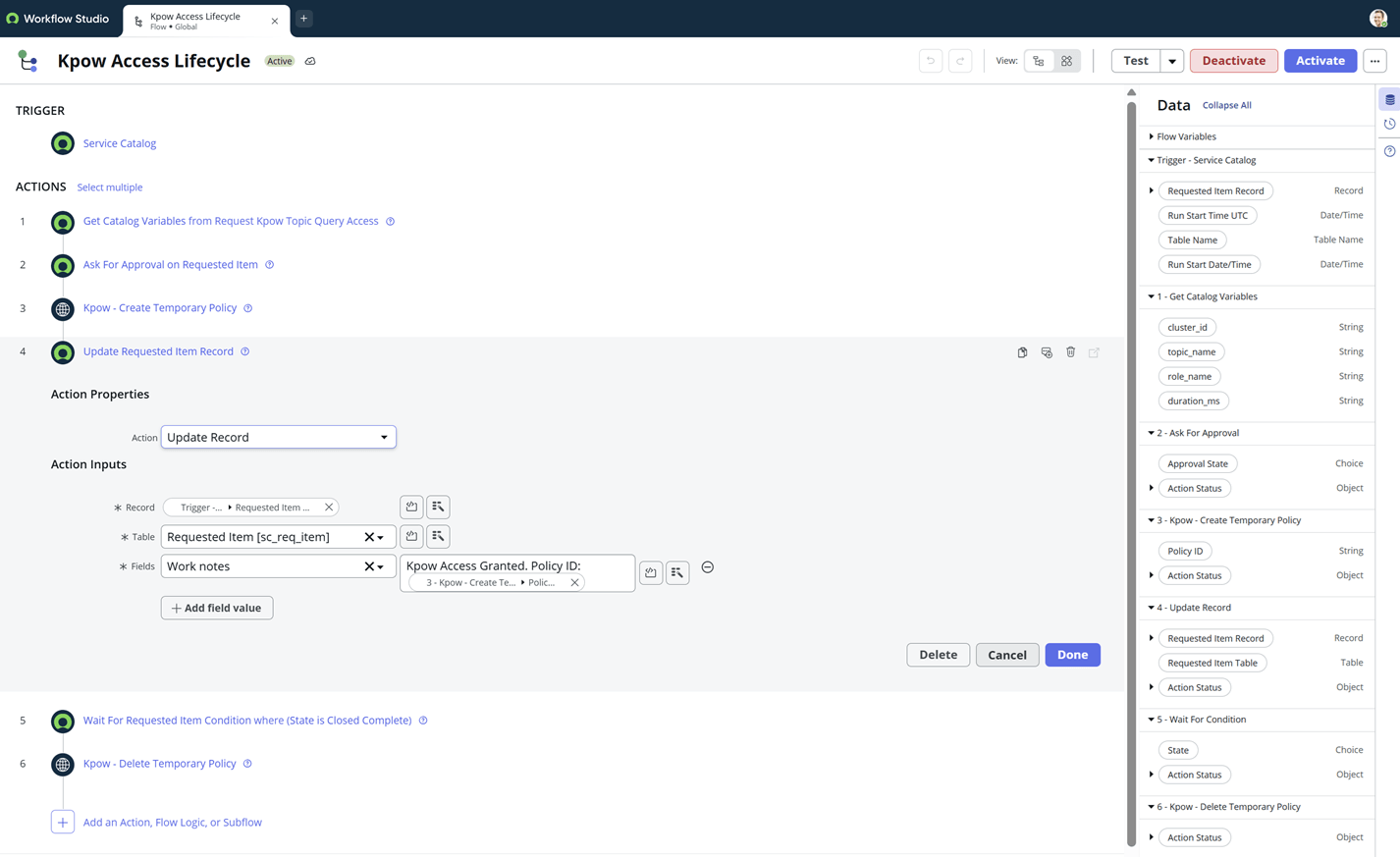
Step 4: Update Requested Item Record
We provide immediate feedback to the requester and create an audit trail by updating the ticket.
- Action: Update Record
- Fields: Set the Work notes to include the unique Policy ID returned by Kpow:
Kpow Access Granted. Policy ID: {{Step 3.Policy ID}}.
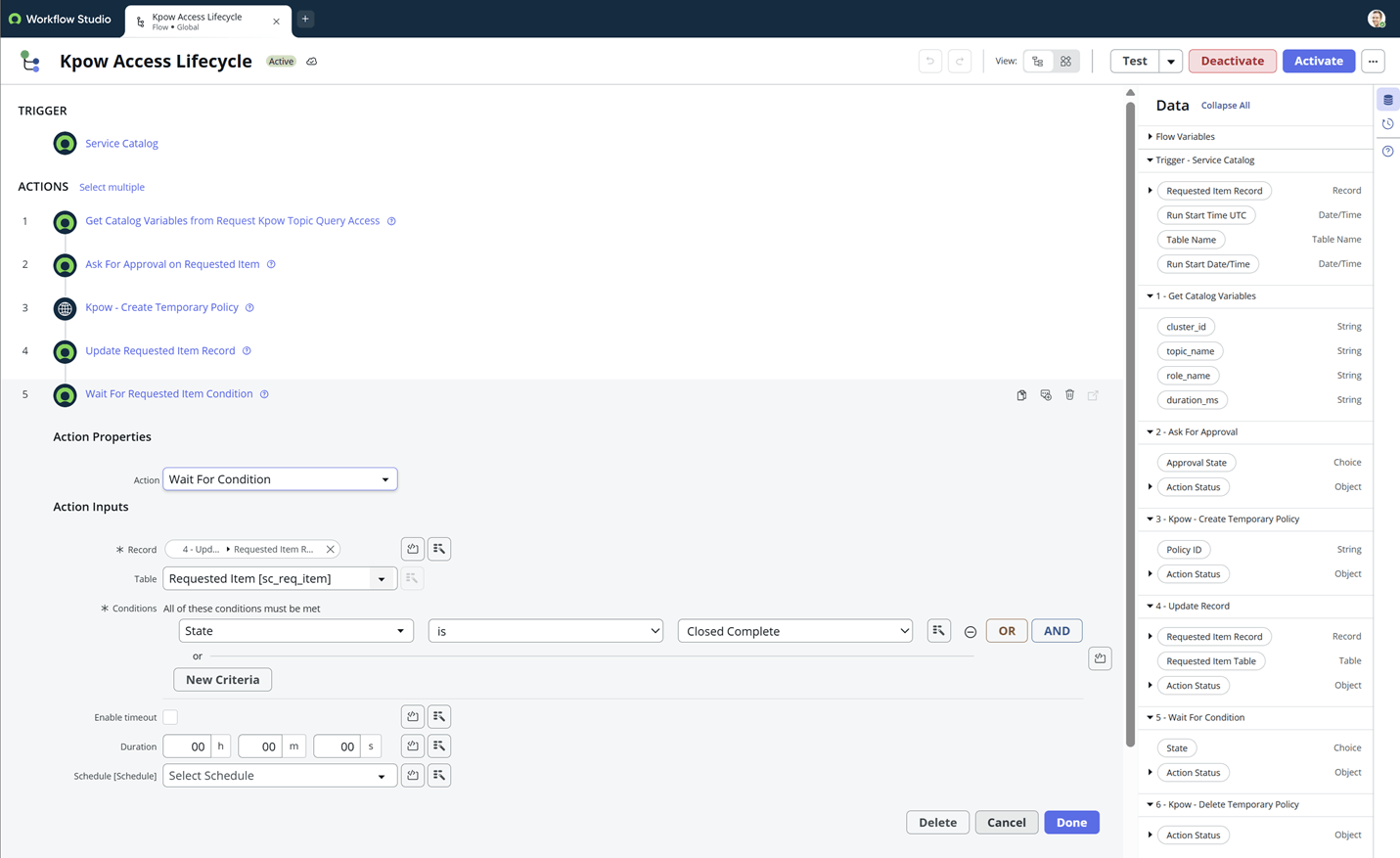
Step 5: Wait For Condition
To allow the user time to perform their work, the flow pauses until the ticket is manually closed.
- Action: Wait For Condition
- Record: Requested Item Record
- Conditions:
StateisClosed Complete. - Result: The flow will “sleep” at this step, keeping the Kpow policy active until an admin or user closes the ticket.
Step 6: Kpow - Delete Temporary Policy
When the ticket is closed, the flow “wakes up” to clean up the temporary permissions.
- Action: Kpow - Delete Temporary Policy
- Policy ID: Drag the Policy ID pill from Step 3.
- Result: Access is revoked immediately in Kpow, ensuring no stale permissions remain.
Validating the Workflow
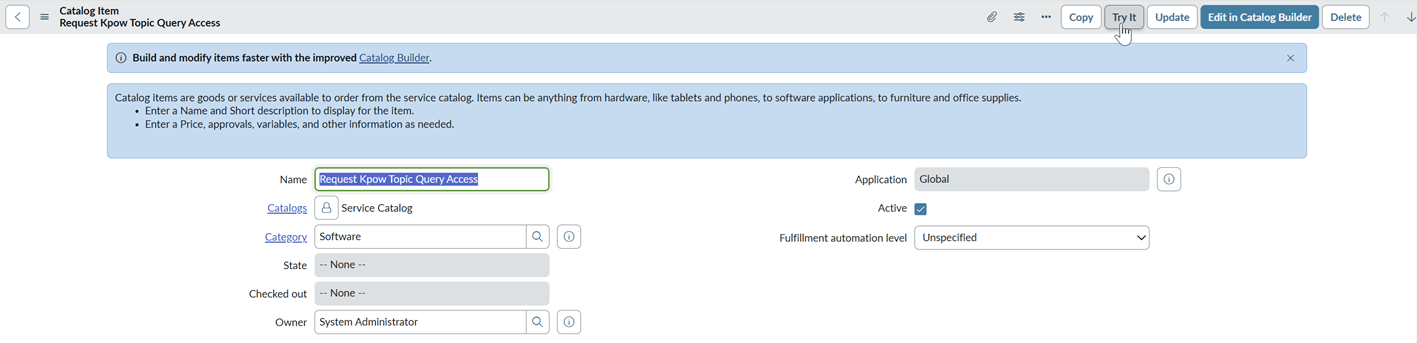
To test our end-to-end workflow, we begin by clicking the Try It button on our Catalog Item - Request Kpow Topic Query Access.
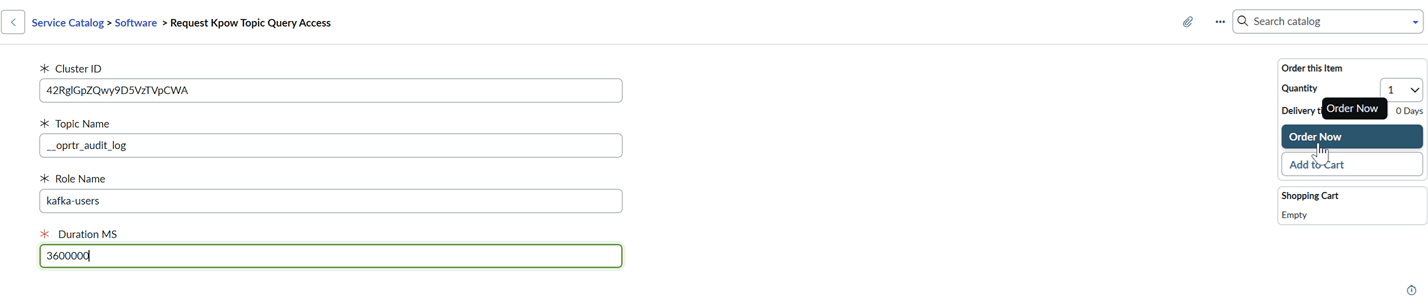
We enter the necessary values for our Kafka environment and click Order Now.
- Cluster ID
- Topic Name
- Role Name
- Duration MS
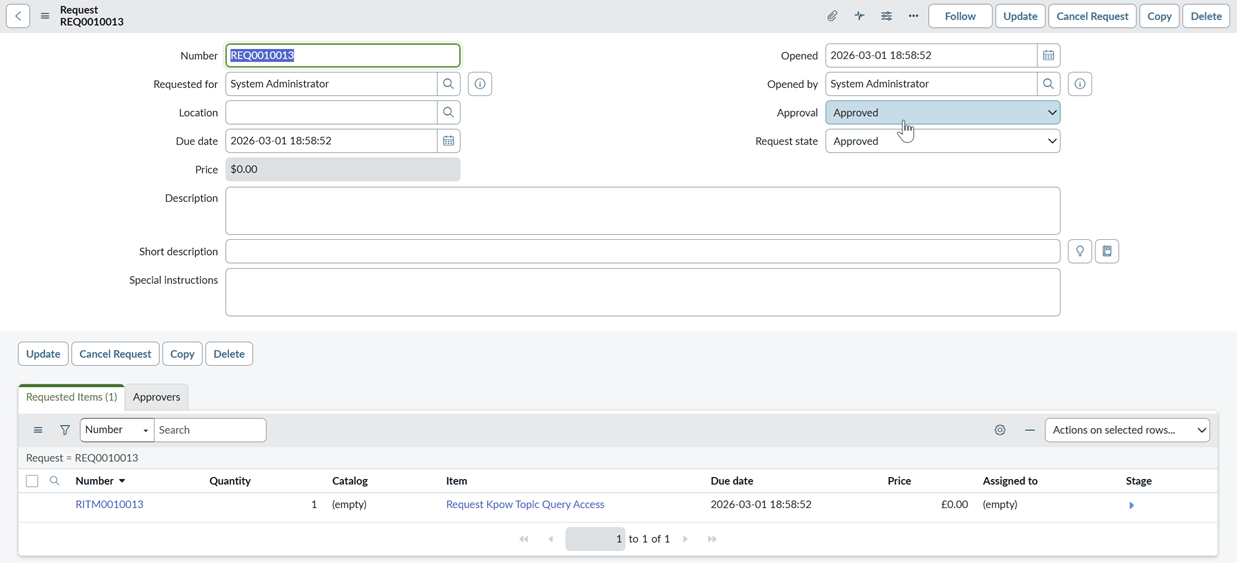
We see the request status is immediately marked as Approved. This occurs because our request is made by the System Administrator, who has no manager defined in this environment. In a production configuration, this would stay in a “Requested” state until manual approval is granted. Now, we can check if our temporary policy was created.
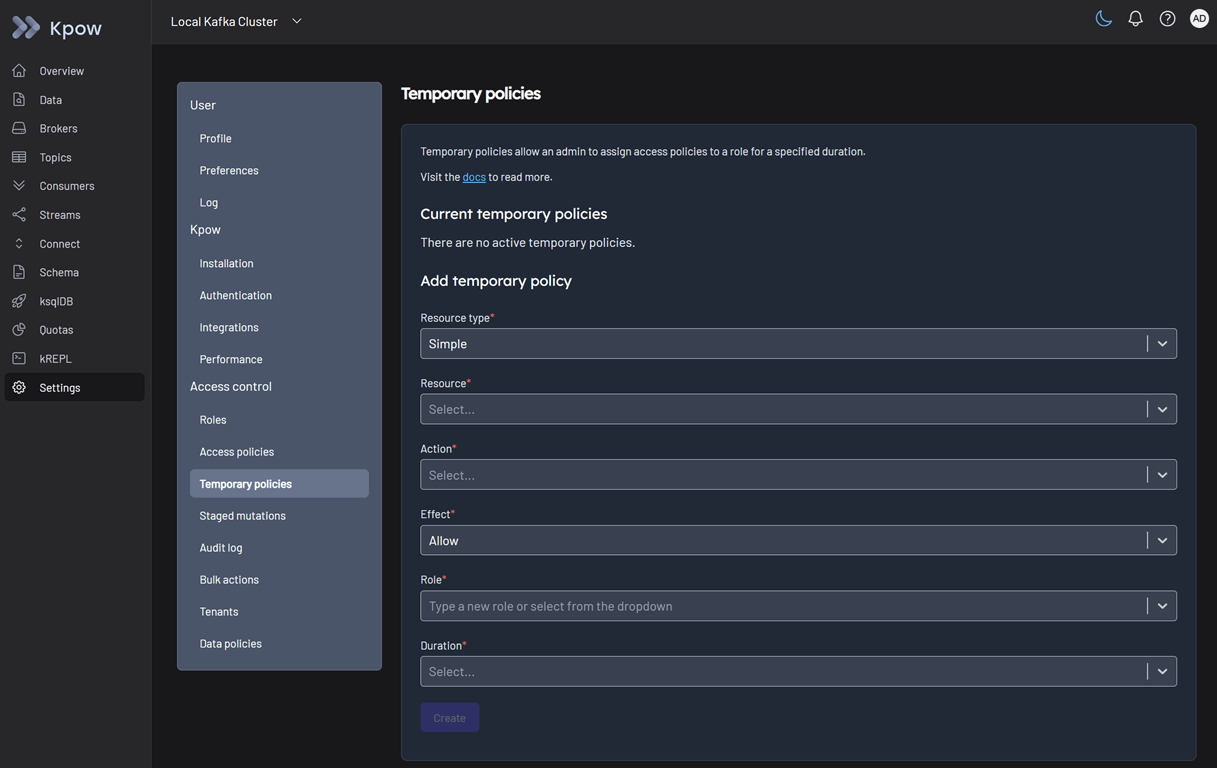
We login to Kpow as the admin user (username: admin, password: admin). In Settings > Temporary policies, we can verify that a temporary policy has been successfully created.
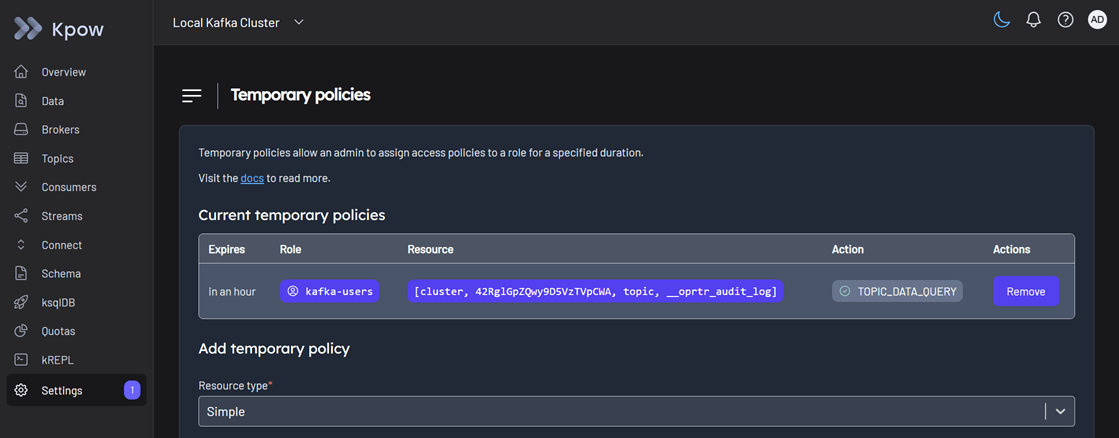
Next, we login to Kpow as the standard user (username: user, password: password). In Data > Inspect, we can now successfully search the approved topic: __oprtr_audit_log.
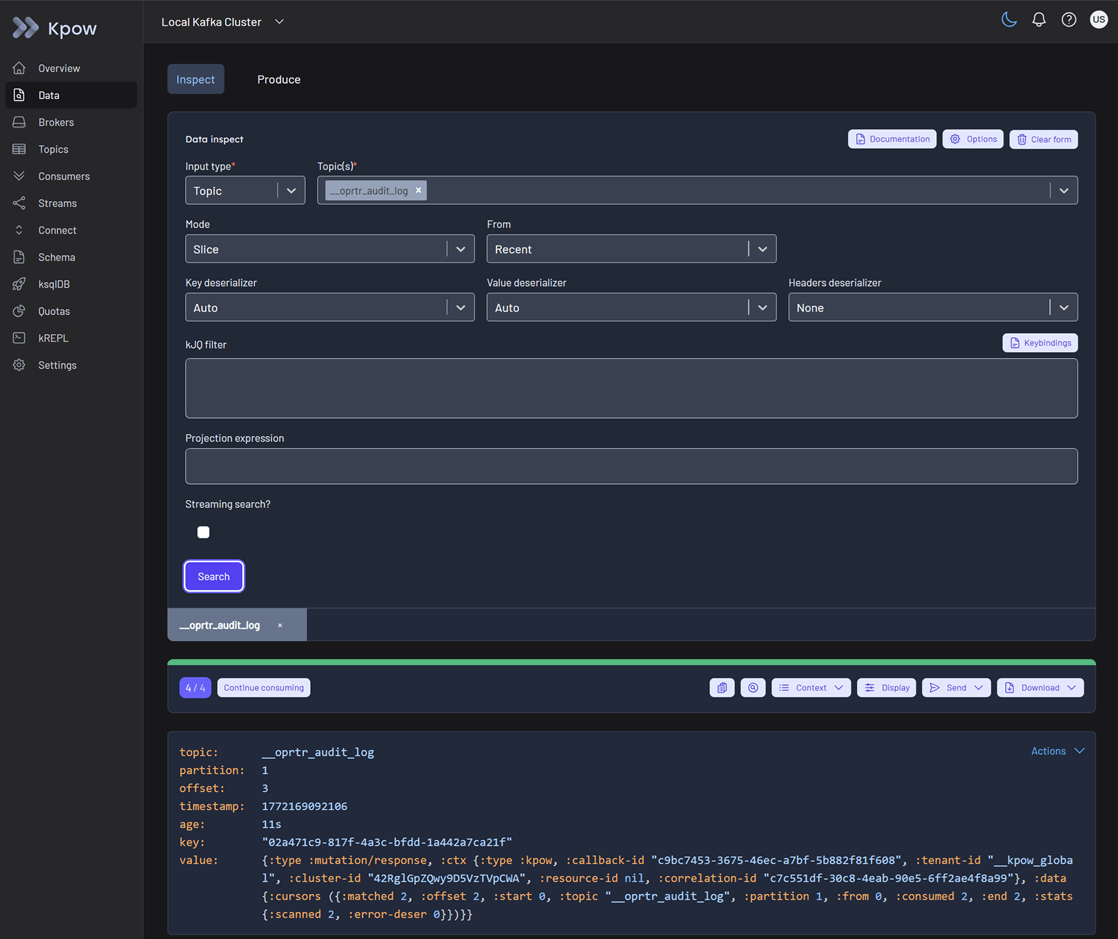
As we expect, when we attempt to search any other topic, the request fails, confirming that our policy is restricted only to the resource we requested.

To test the policy deletion and access revocation, we update the state of the requested item. First, we select the specific Requested Item (RITM).
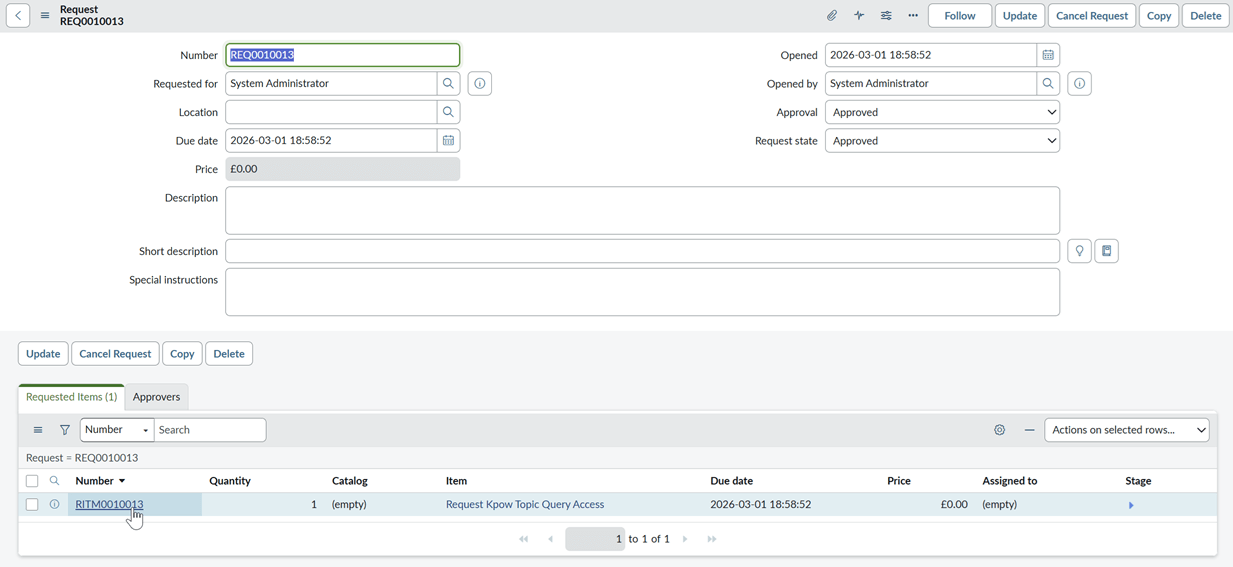
We update the state to Closed Complete and hit Update. This triggers the final stage of our ServiceNow flow.
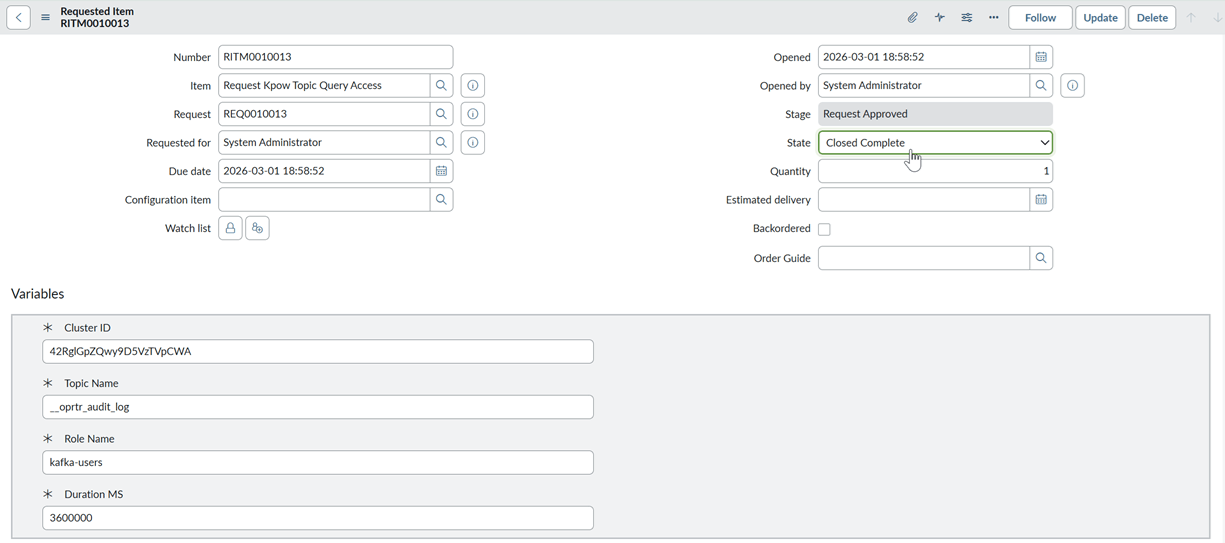
When we revisit Kpow as the admin user, the temporary policy no longer appears in the list.
Finally, we can verify that the standard user no longer has permission to query the topic, completing the full access lifecycle.
Conclusion
By integrating Kpow’s Admin API with ServiceNow’s Flow Designer, we have successfully moved from a static, manual security model to a dynamic and governed access framework. This self-service approach empowers engineering teams with the access they need to move fast while providing security teams with the peace of mind that every permission is authorized, scoped, and automatically revoked.
Whether you are looking to minimize your administrative overhead or strictly enforce zero-trust principles within your data streaming environment, this integration provides a robust template for Kafka governance. The approval records it leaves in ServiceNow, together with Kpow’s audit log, are part of the evidence set described in how to prove Kafka compliance in an audit. We invite you to explore the Factor House examples repository to start building your own Just-in-Time access workflows today.
Governance is one part of running Kafka well. The complete guide to Kafka covers the rest.